For AC330 Coded Keypad
Tuya App AC330 Instruction Manual

Last updated:
Usage
Download the Tuya App
Top
Scan the QR code or enter this link to download the APP.
Download the TUYA App from the App Store.
Download the TUYA App from the Play Store.
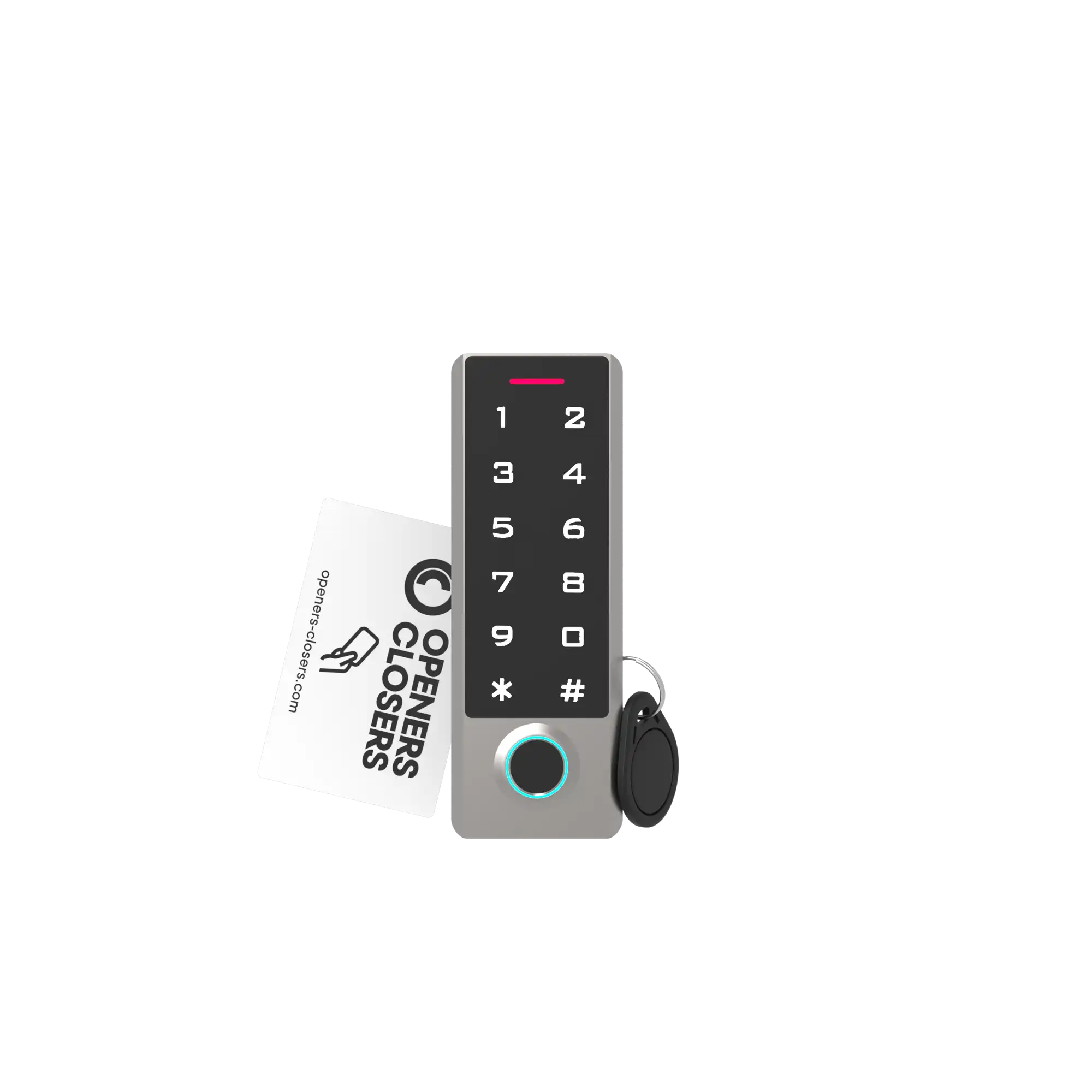
Press [*] [master code] [#] [08] [#] on the access control keypad for Wi-Fi synchronization.
Note: the default master code is 999999.
Usage
Connect Devices
Top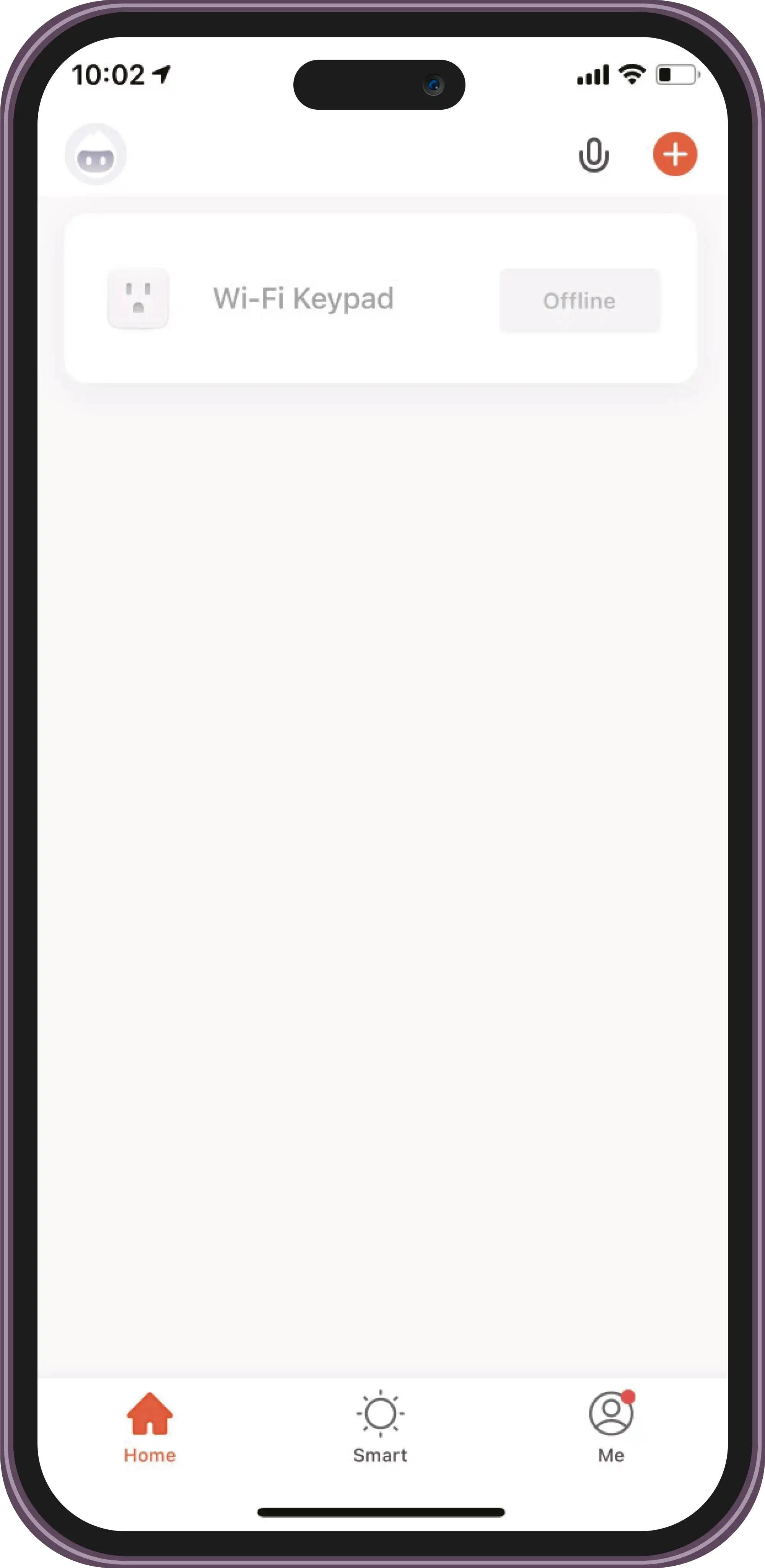
Open the TUYA App to add new devices.
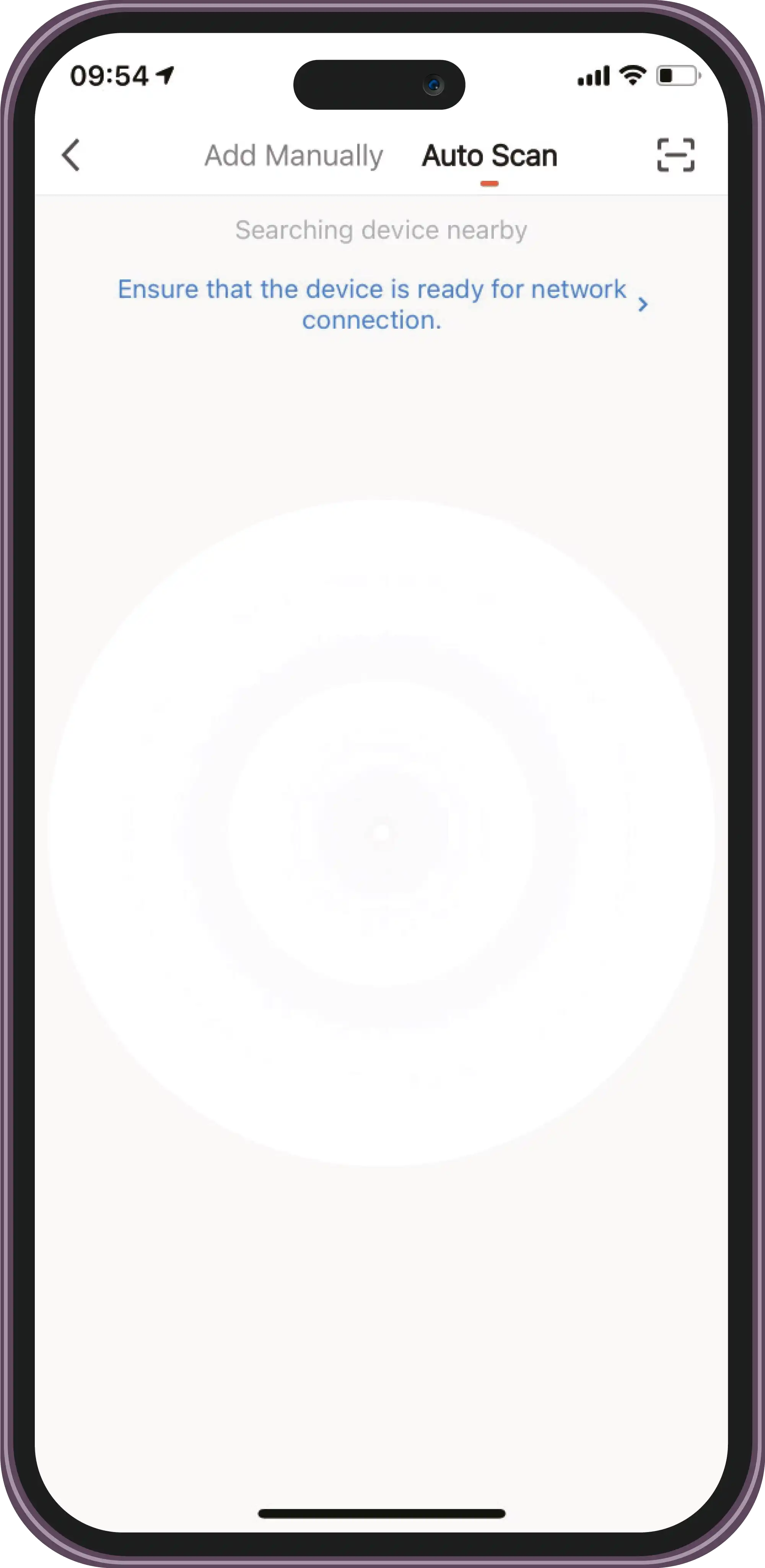
Select 'Auto Scan' and click 'Searching'.
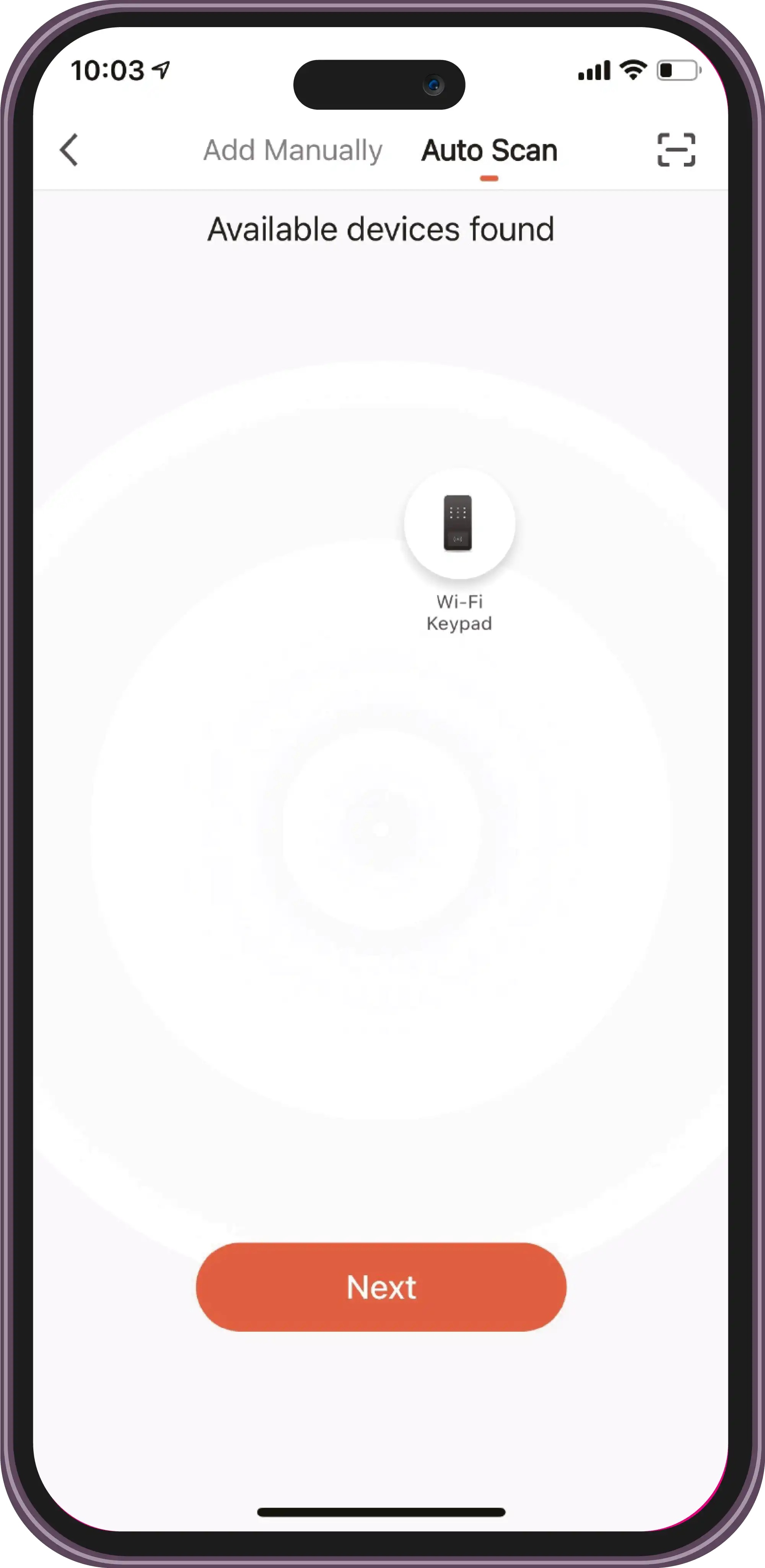
Connect to the available devices.
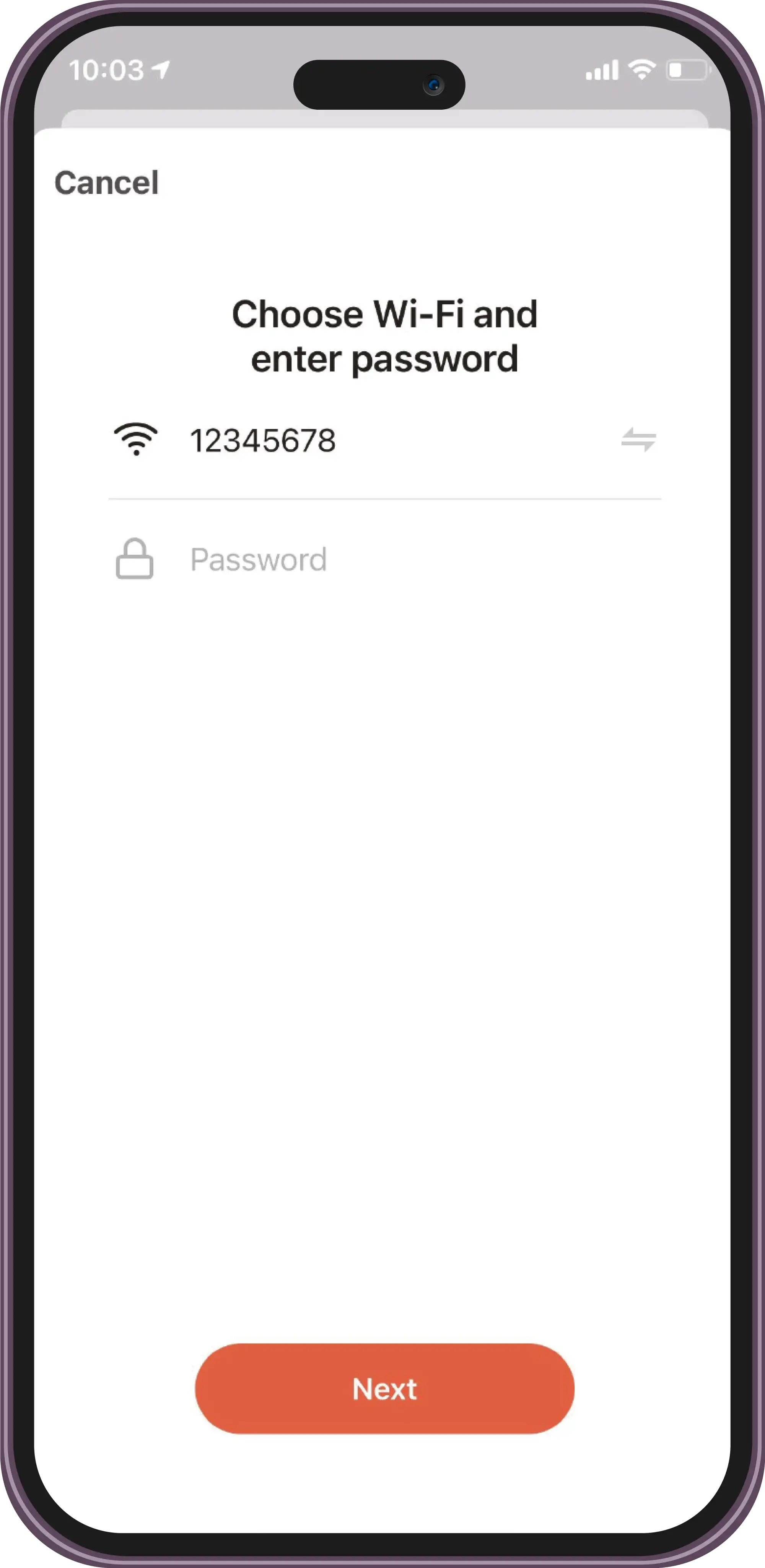
Choose Wi-Fi and enter the password.
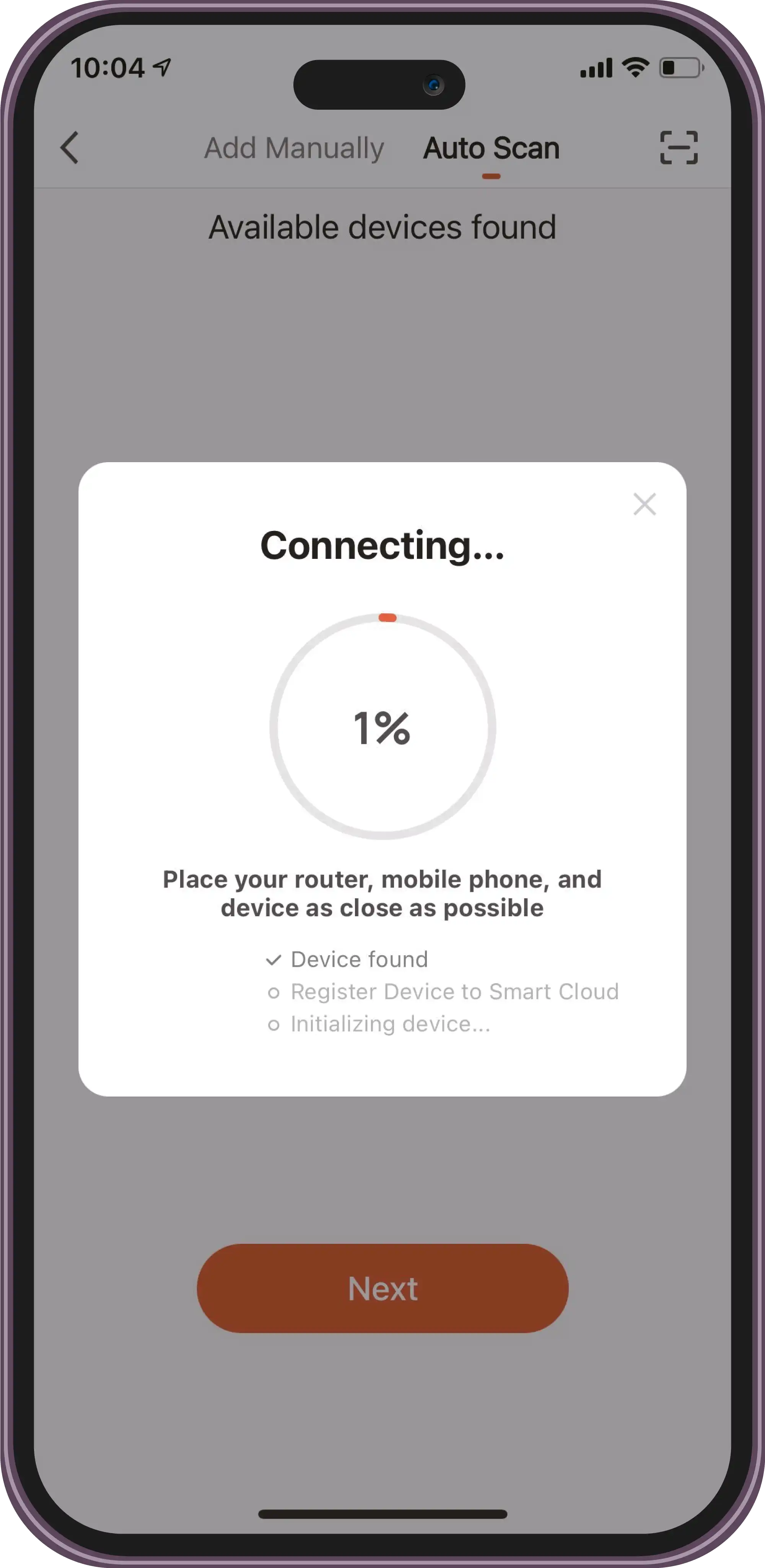
Connecting.
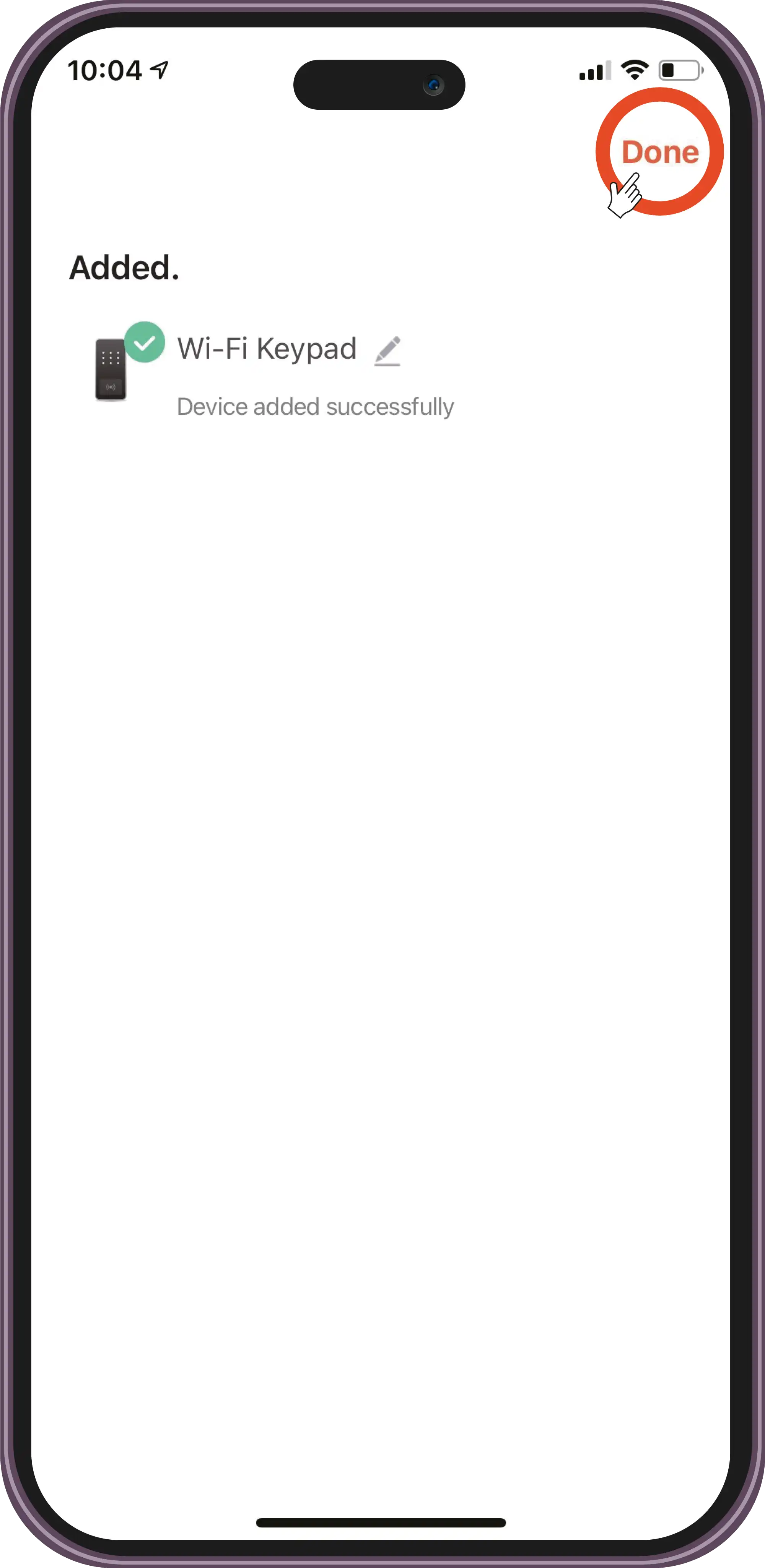
Device added successfully.
Usage
Add a User
Top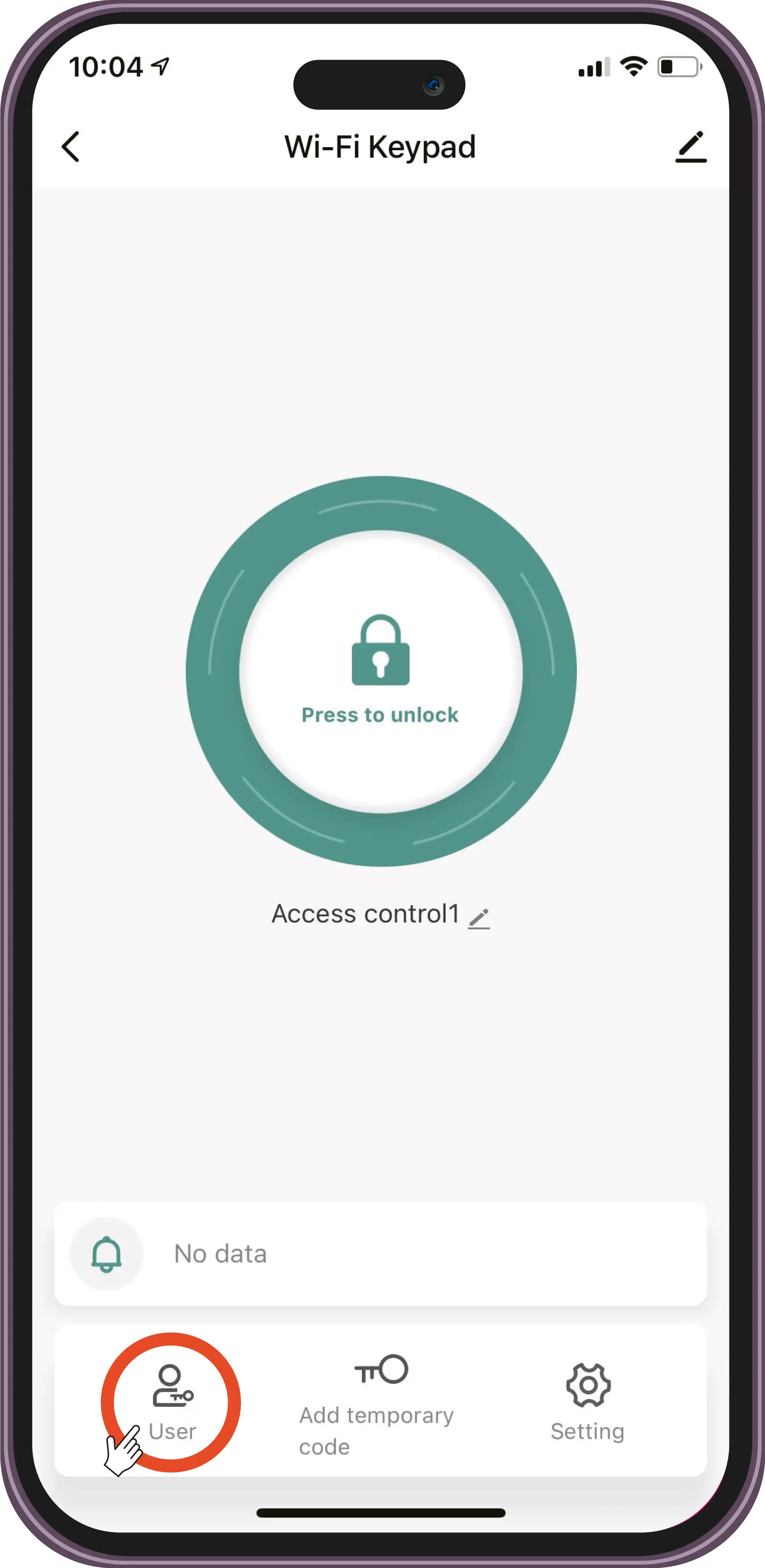
Select user.
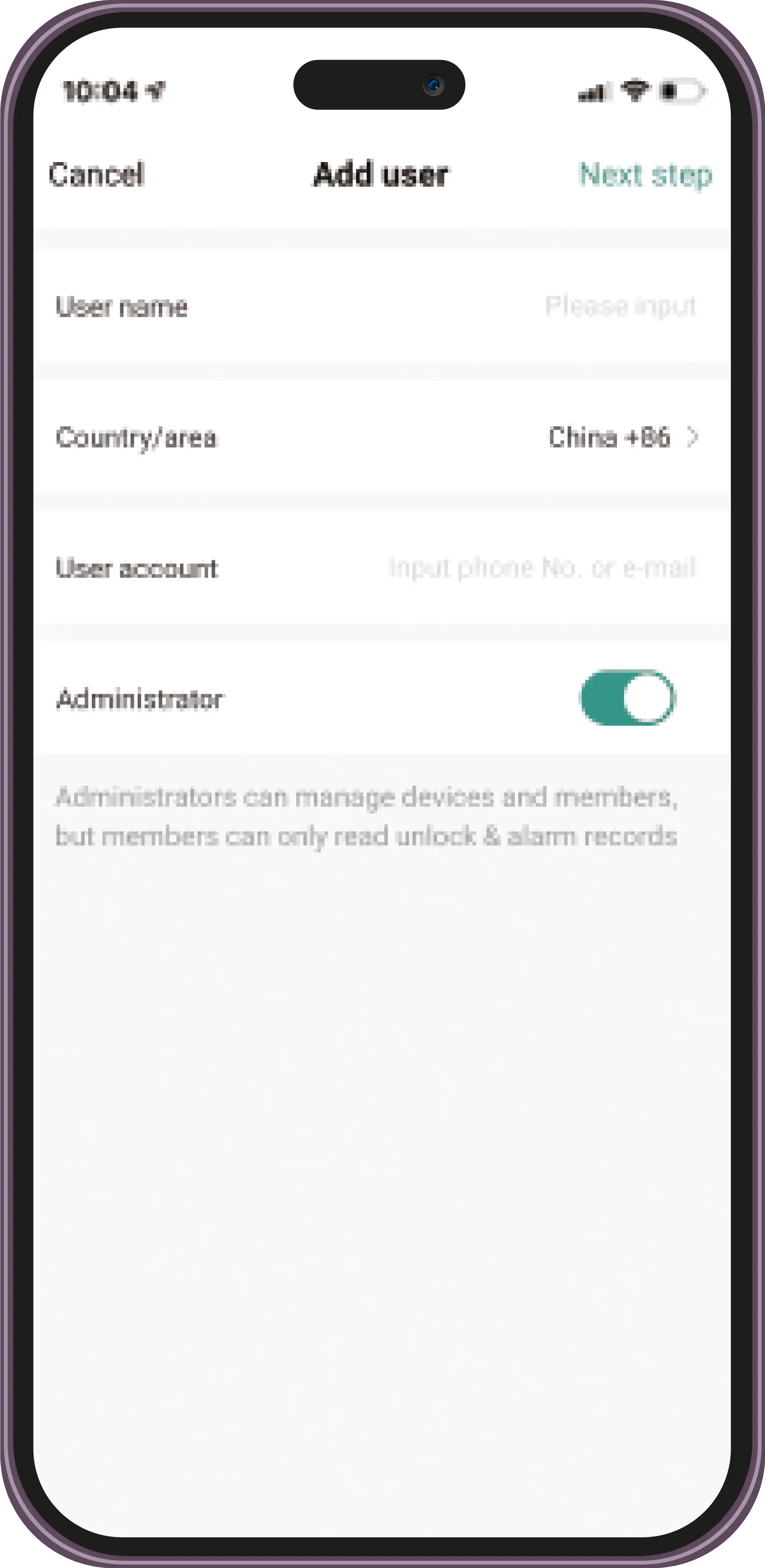
Press '+' and enter the new user's name.
Usage
Add a Fingerprint
Top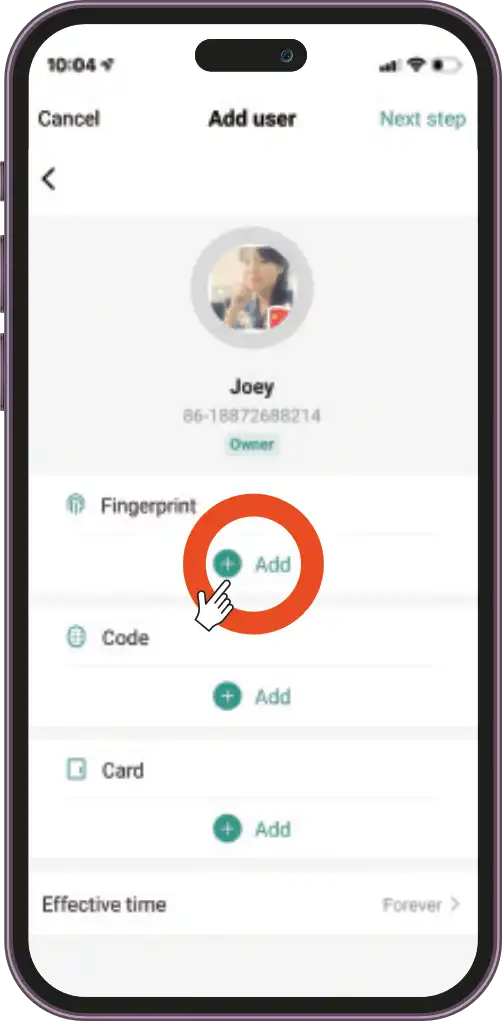
Press '+' in the Fingerprint option.
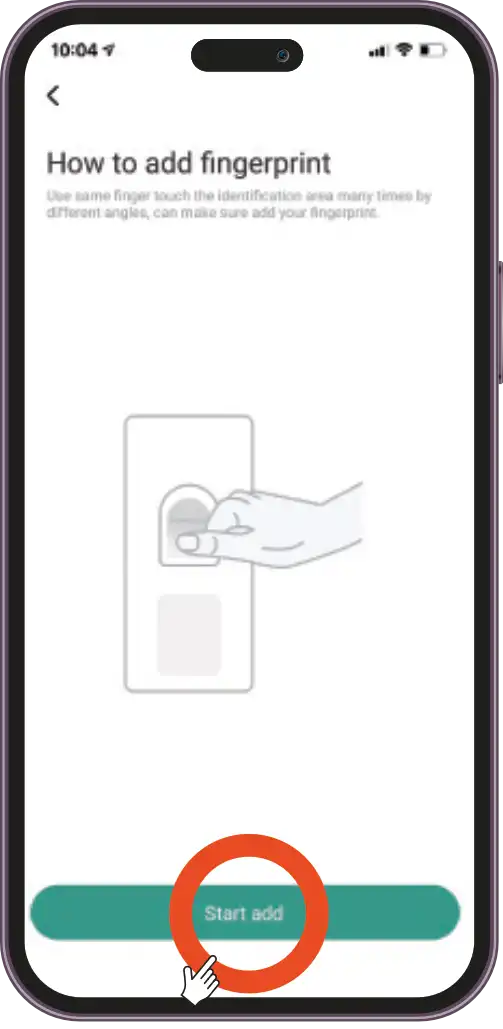
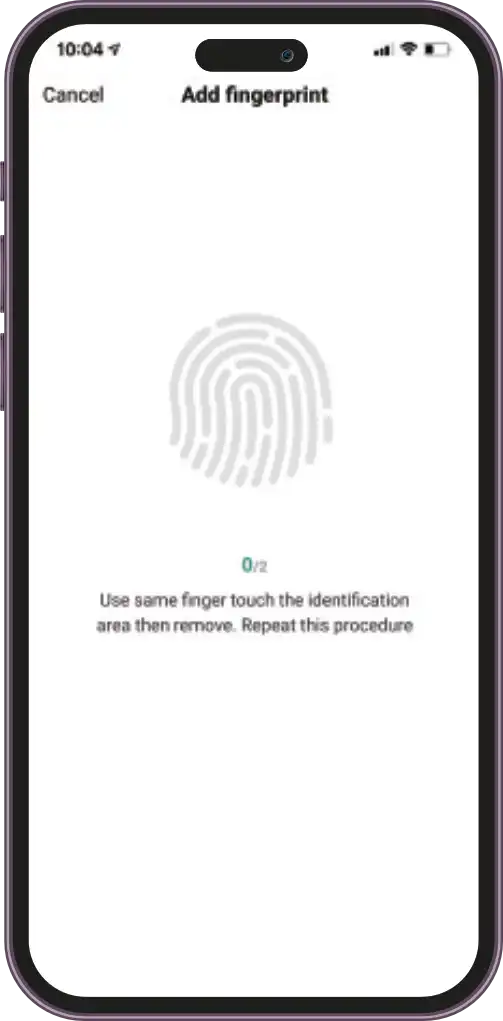
Press 'Start add' to begin recording the fingerprint. Place the same finger on the identification area several times from different angles. Repeat the process 2 times.
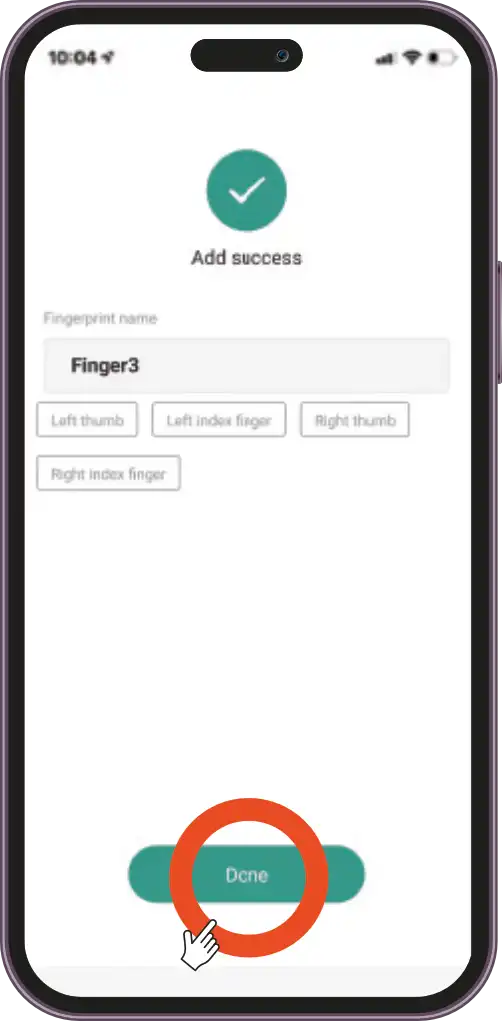
Enter the fingerprint name.
Usage
Add a Code
Top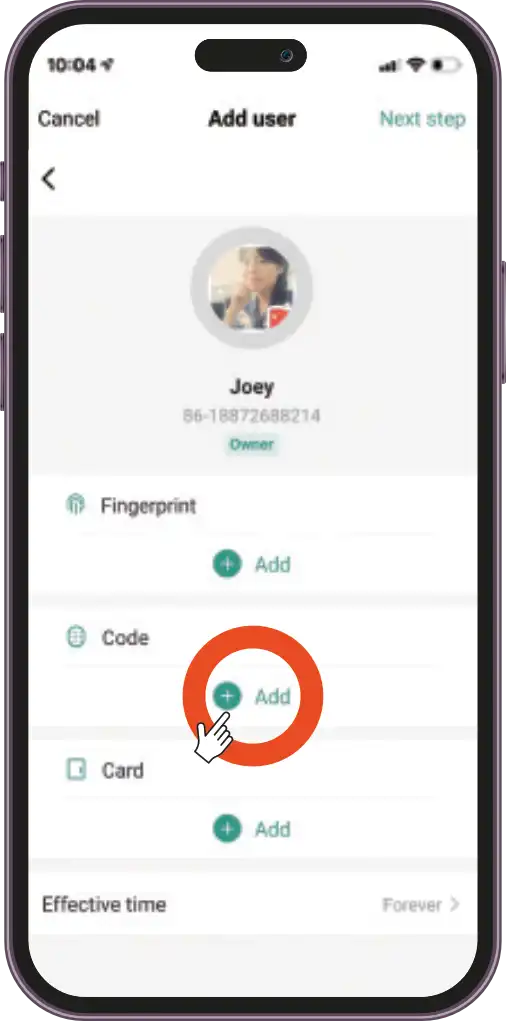
Press '+' in the Code option.
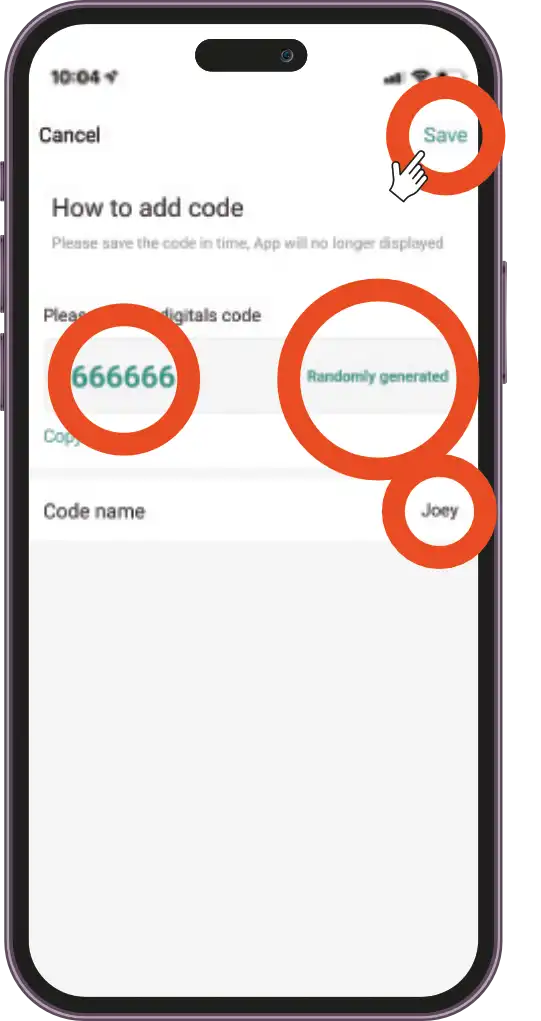
Enter the code or generate it randomly. Enter the code name.
Usage
Add a Card
Top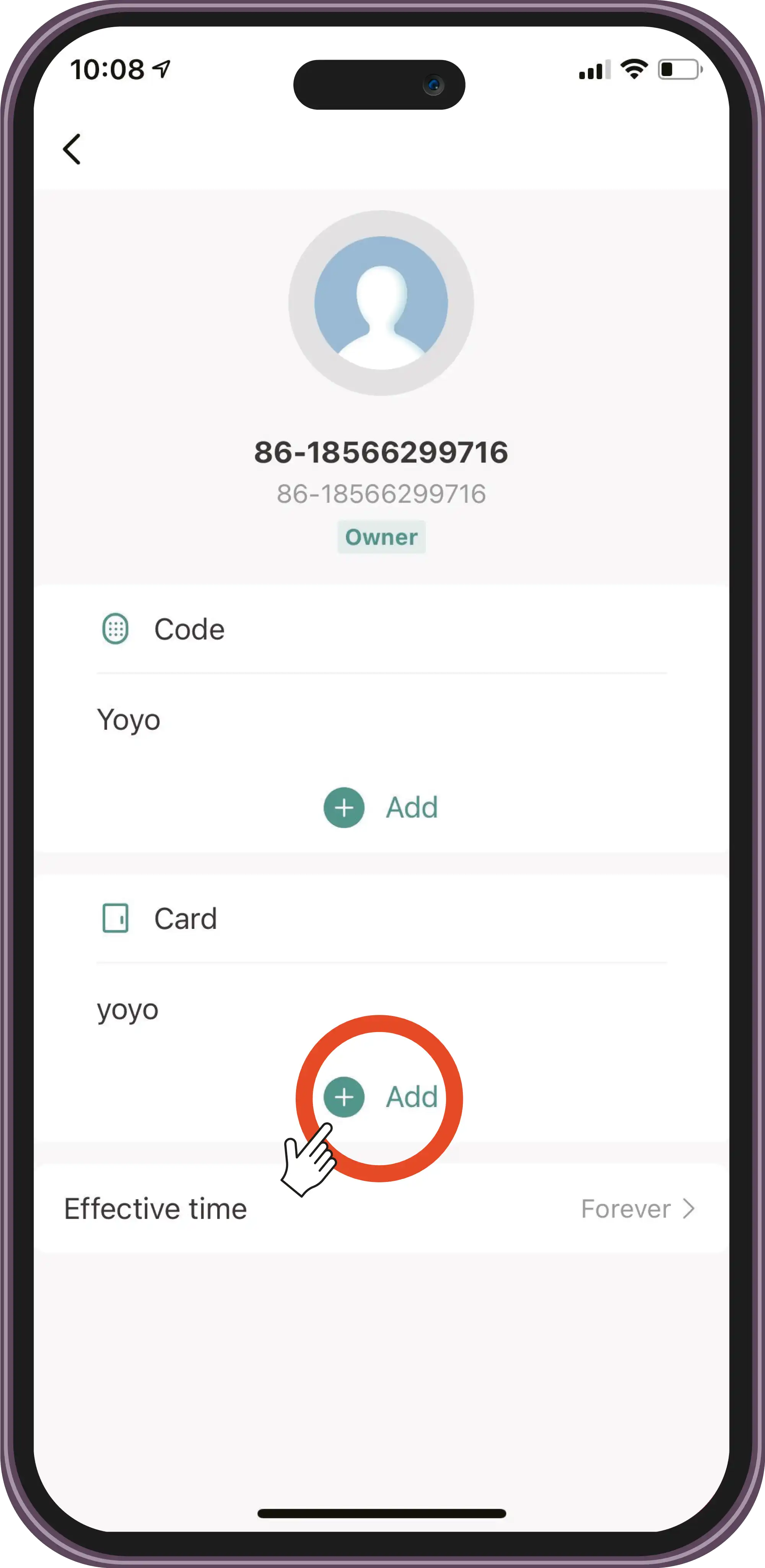
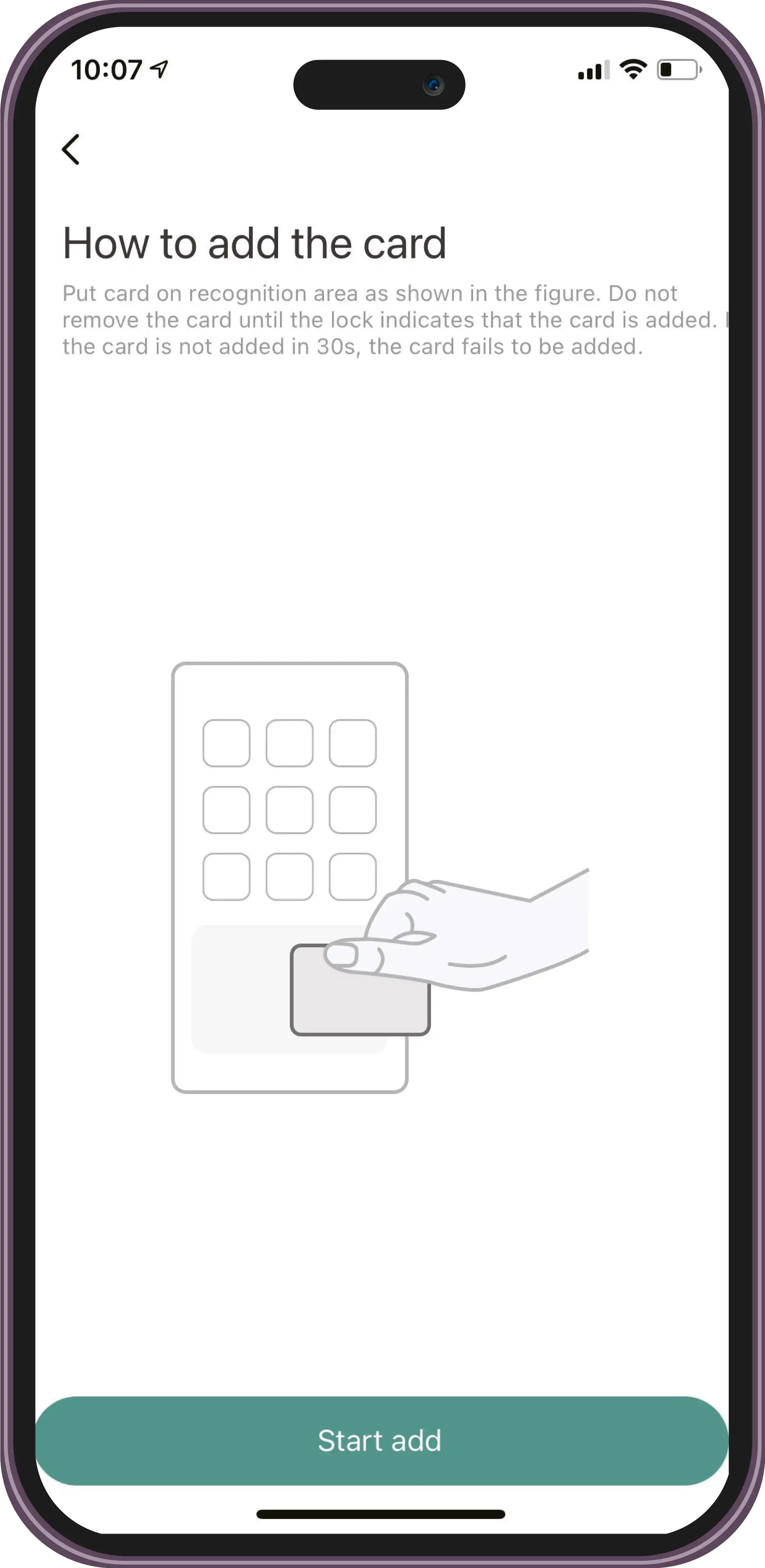
Press '+' and add the card.
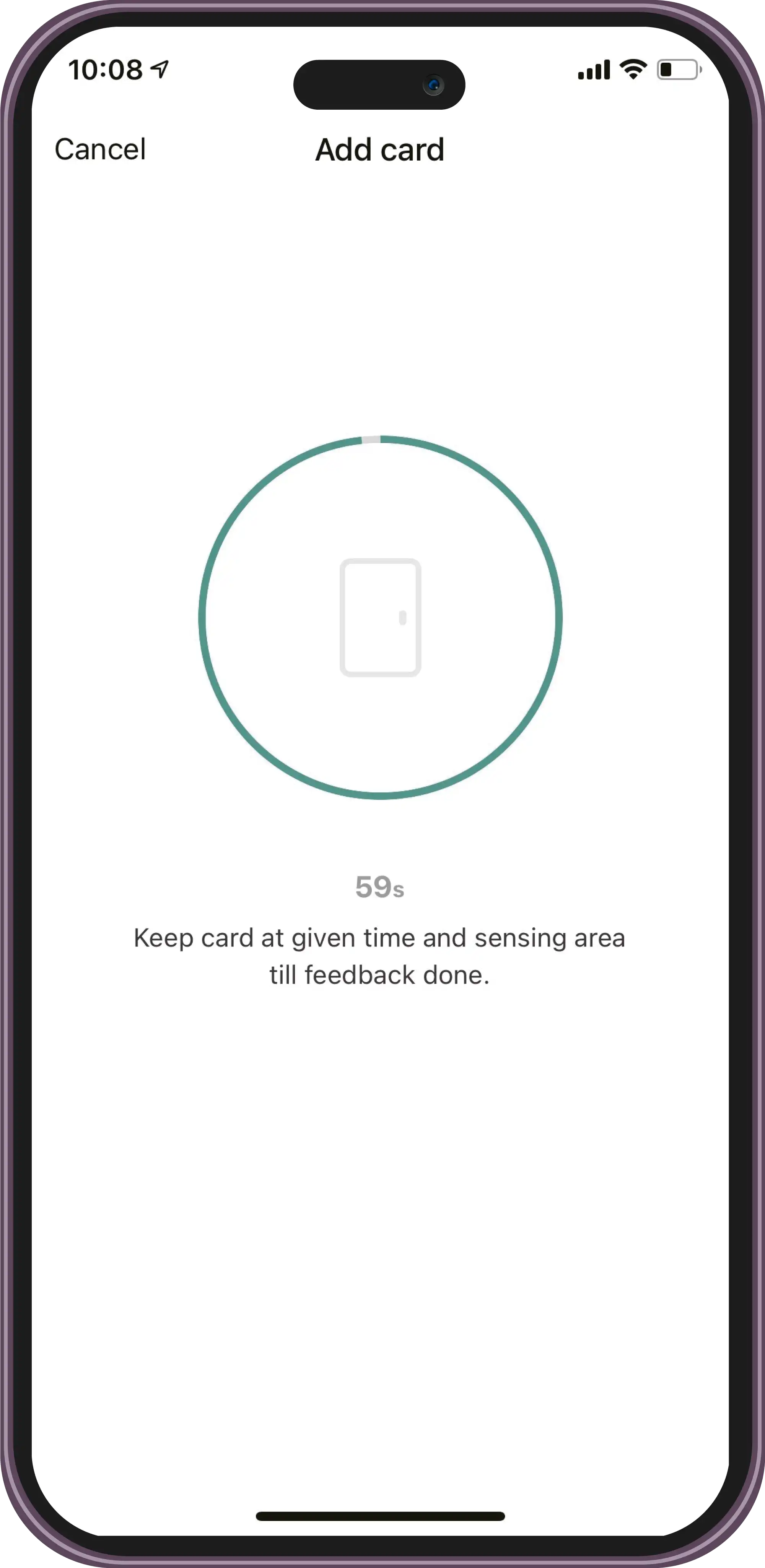
Hold the card near the phone.
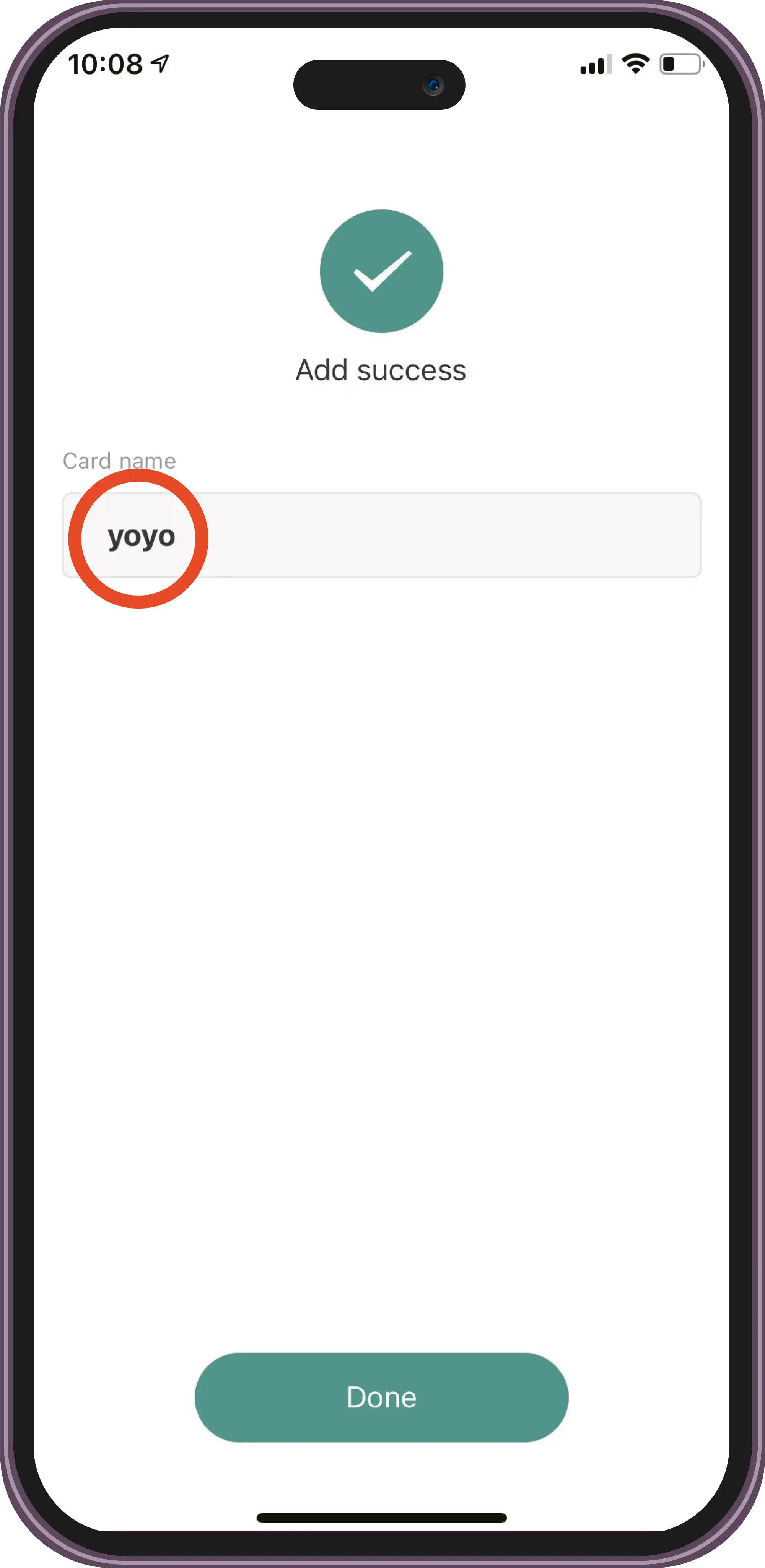
Save the card name.
Usage
Add a Temporary User
Top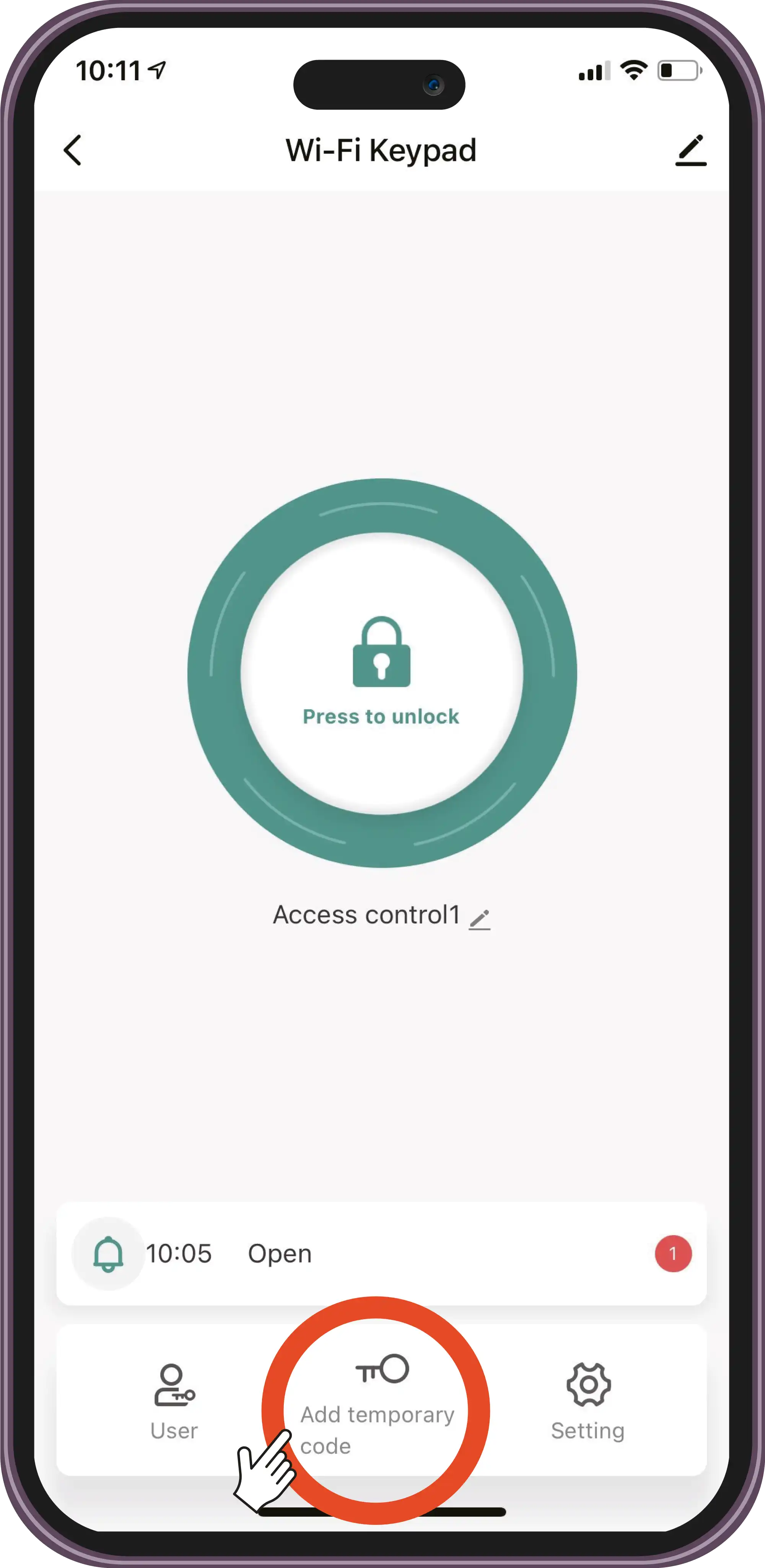
Select 'Add temporary code'. Select 'Cyclicity'.
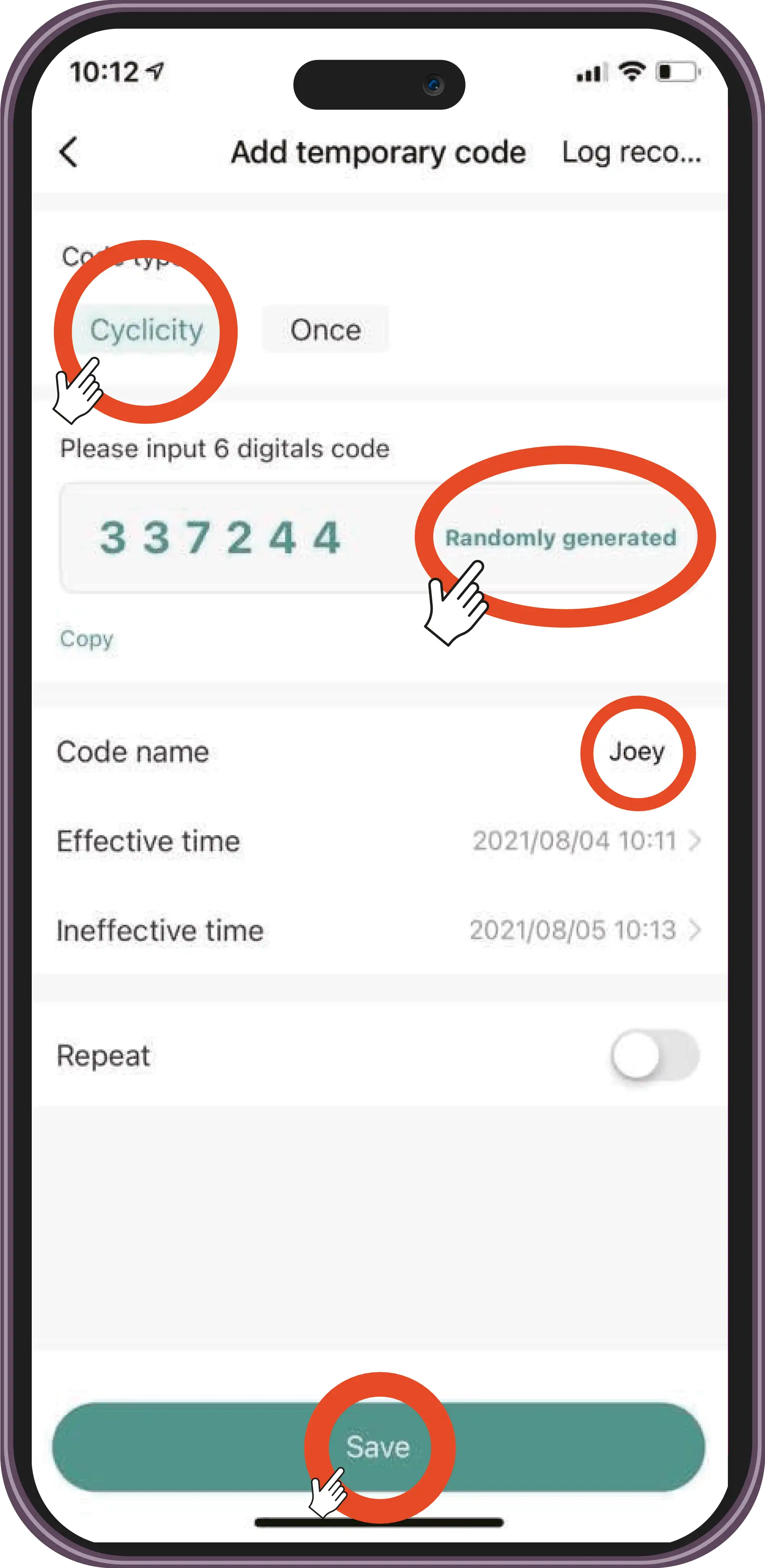
Generate a code randomly and save the code name.
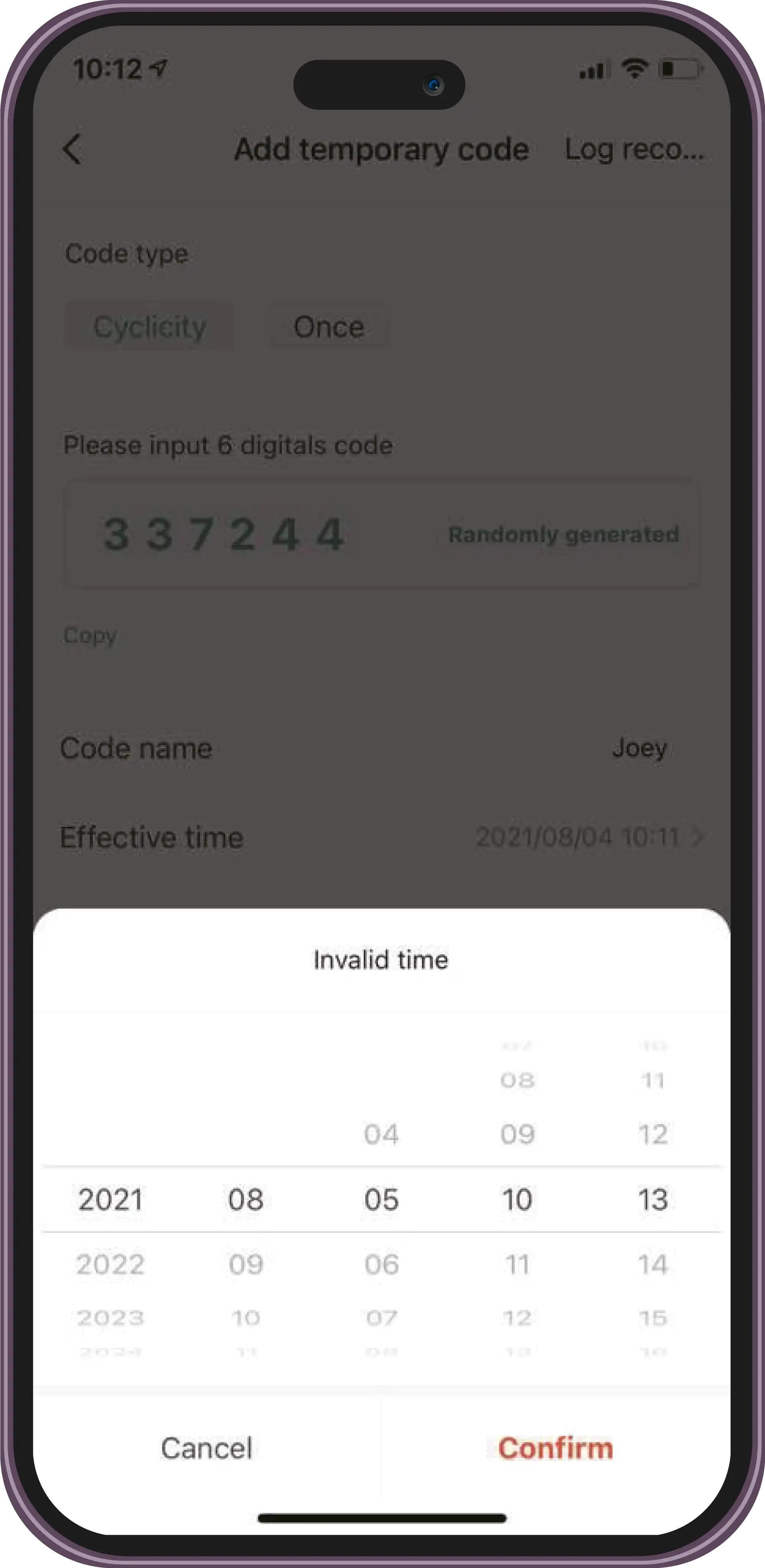
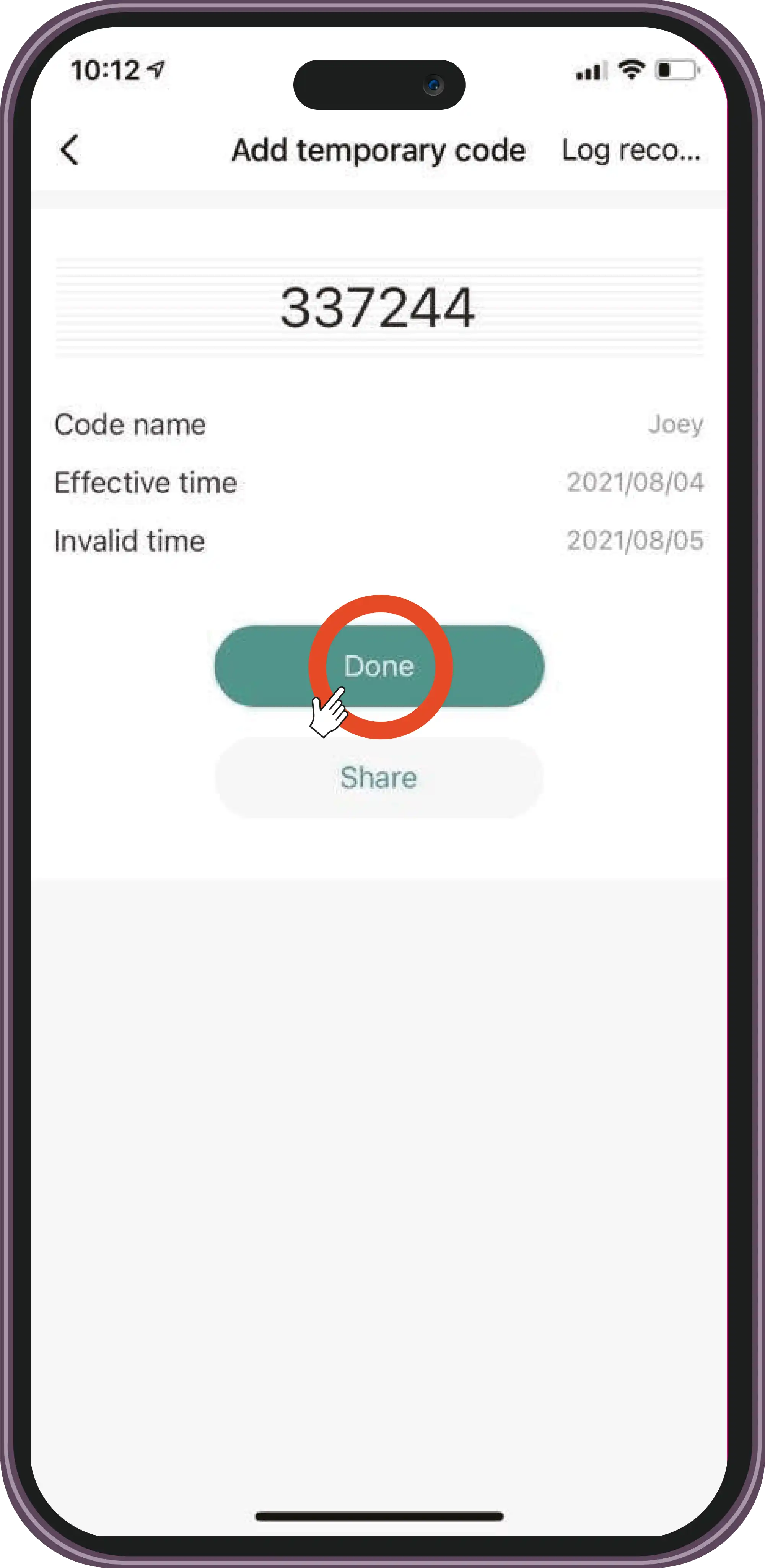
Set the effective time and the ineffective time.
Usage
Add a Temporary Code
Top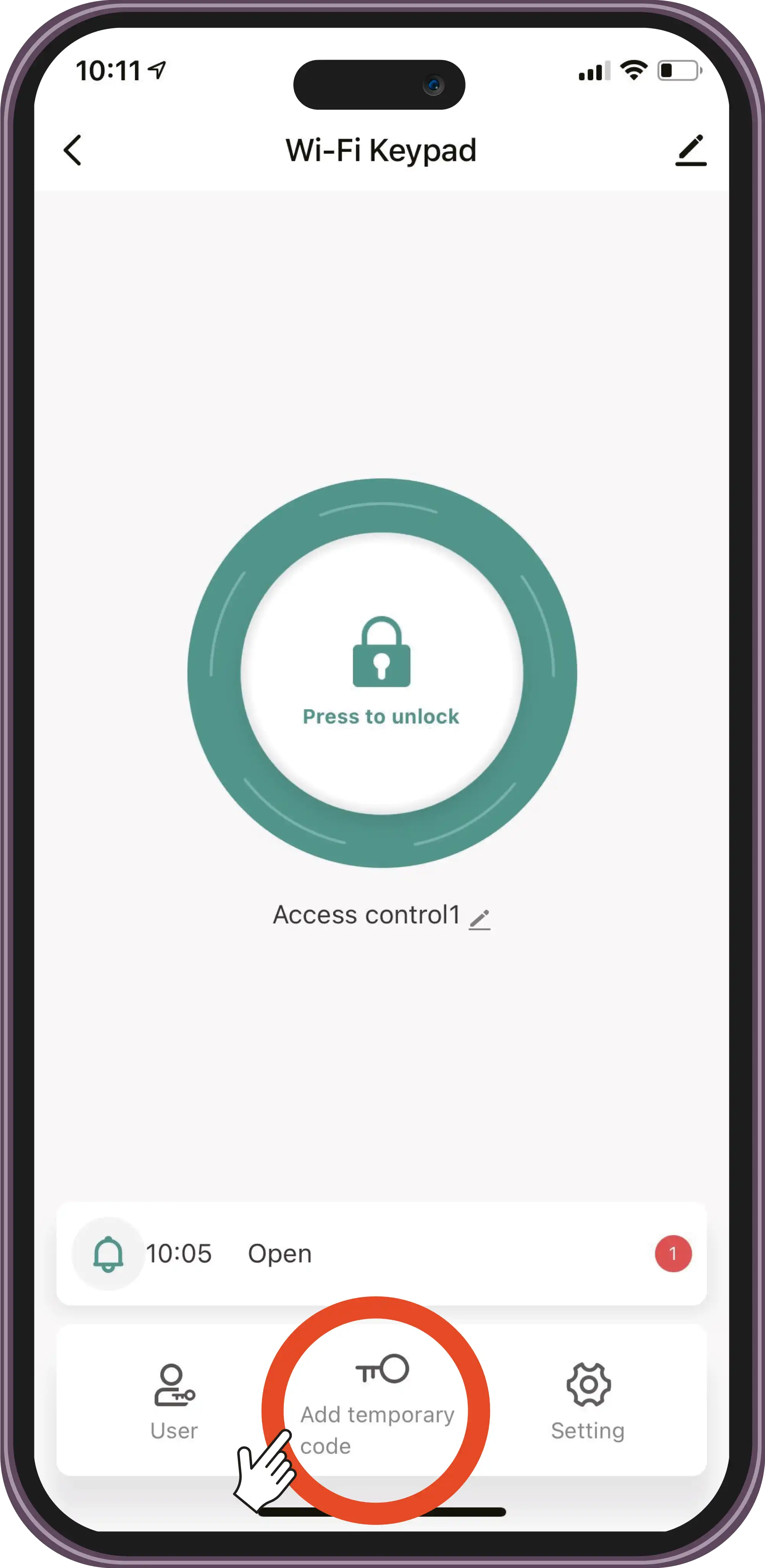
Select 'Add temporary code'.
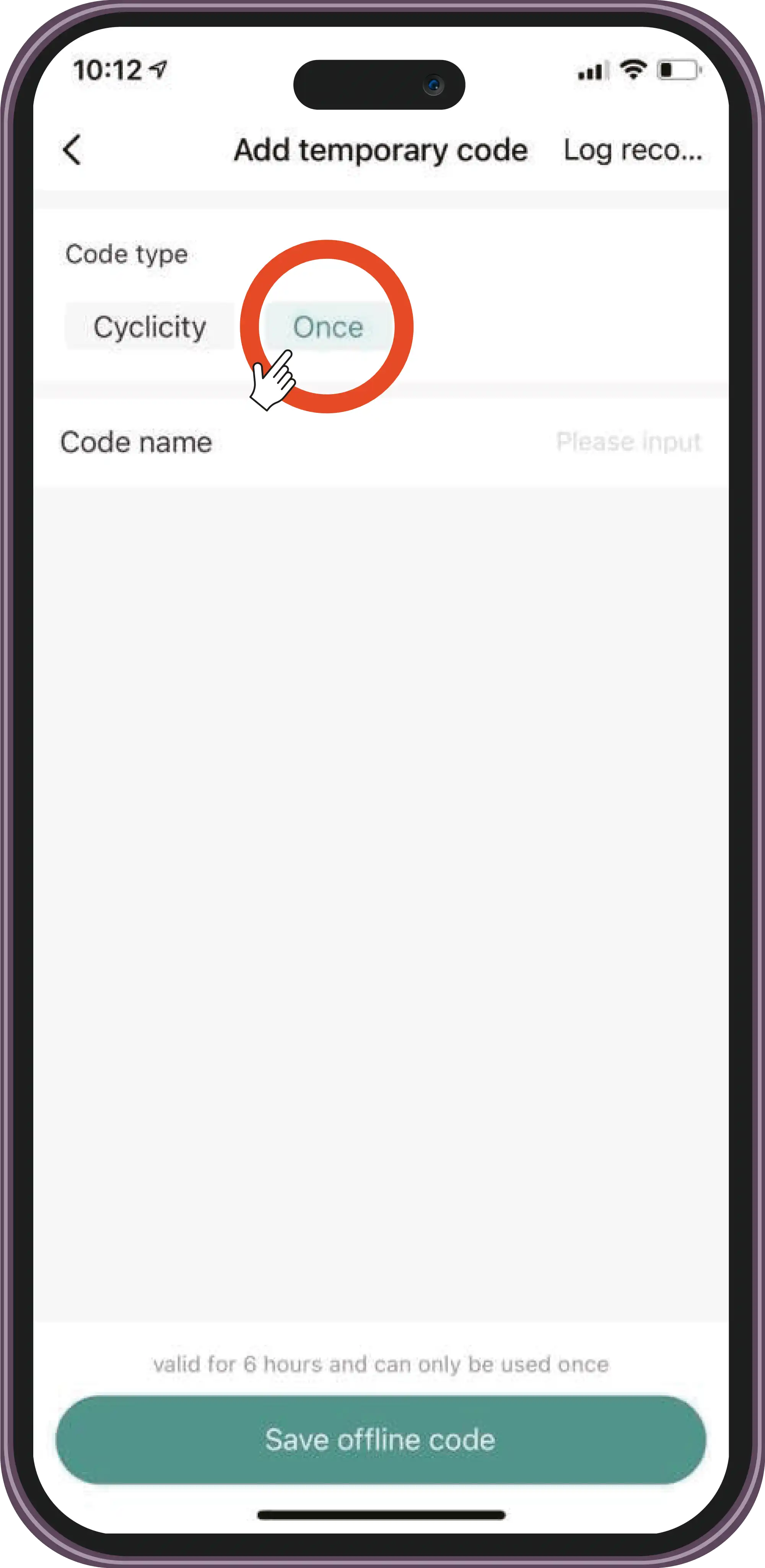
Select the 'Once' option. Enter the code name and save.
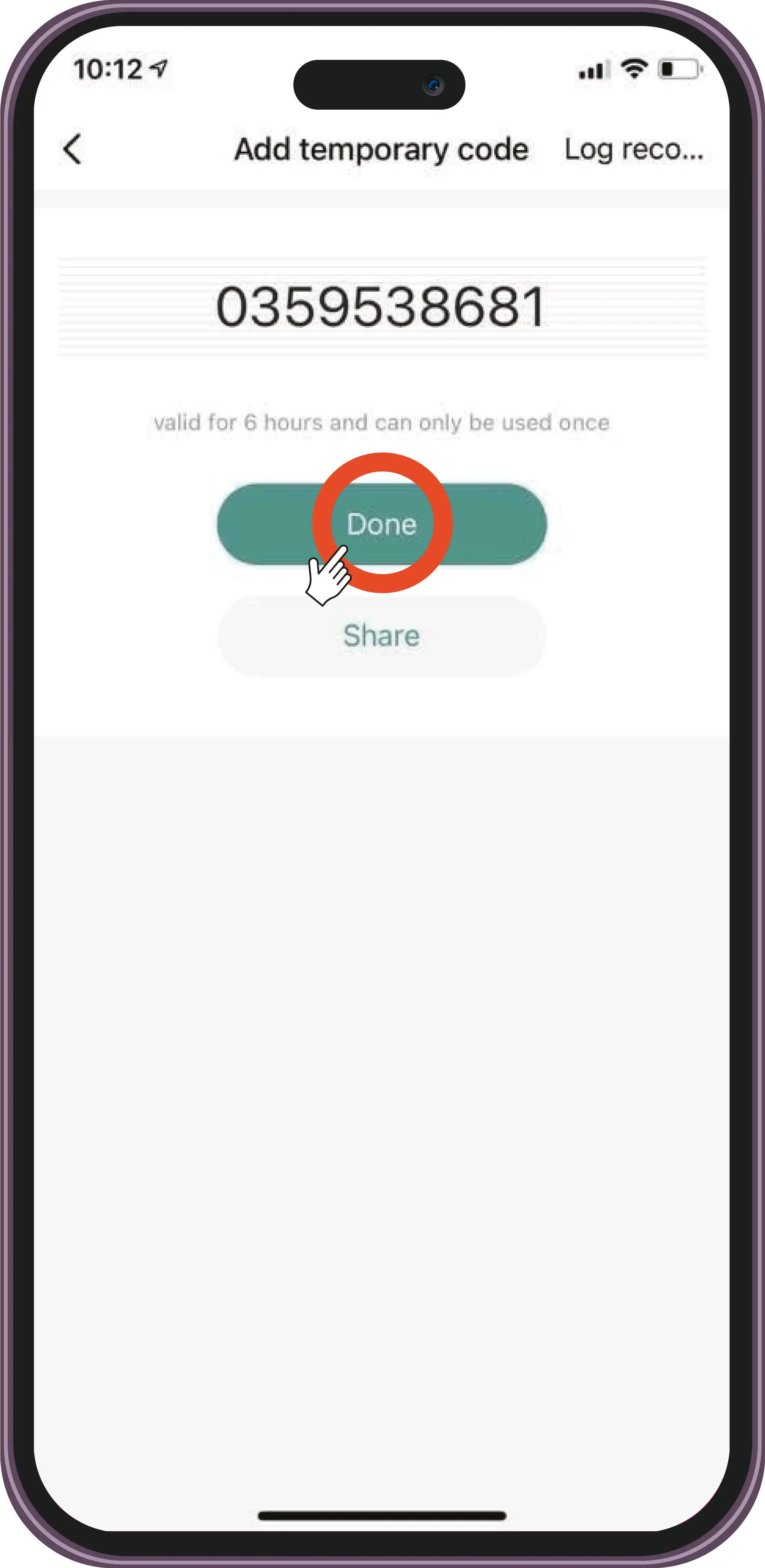
The code is valid for 6 hours and can only be used once.
Usage
Checks
Top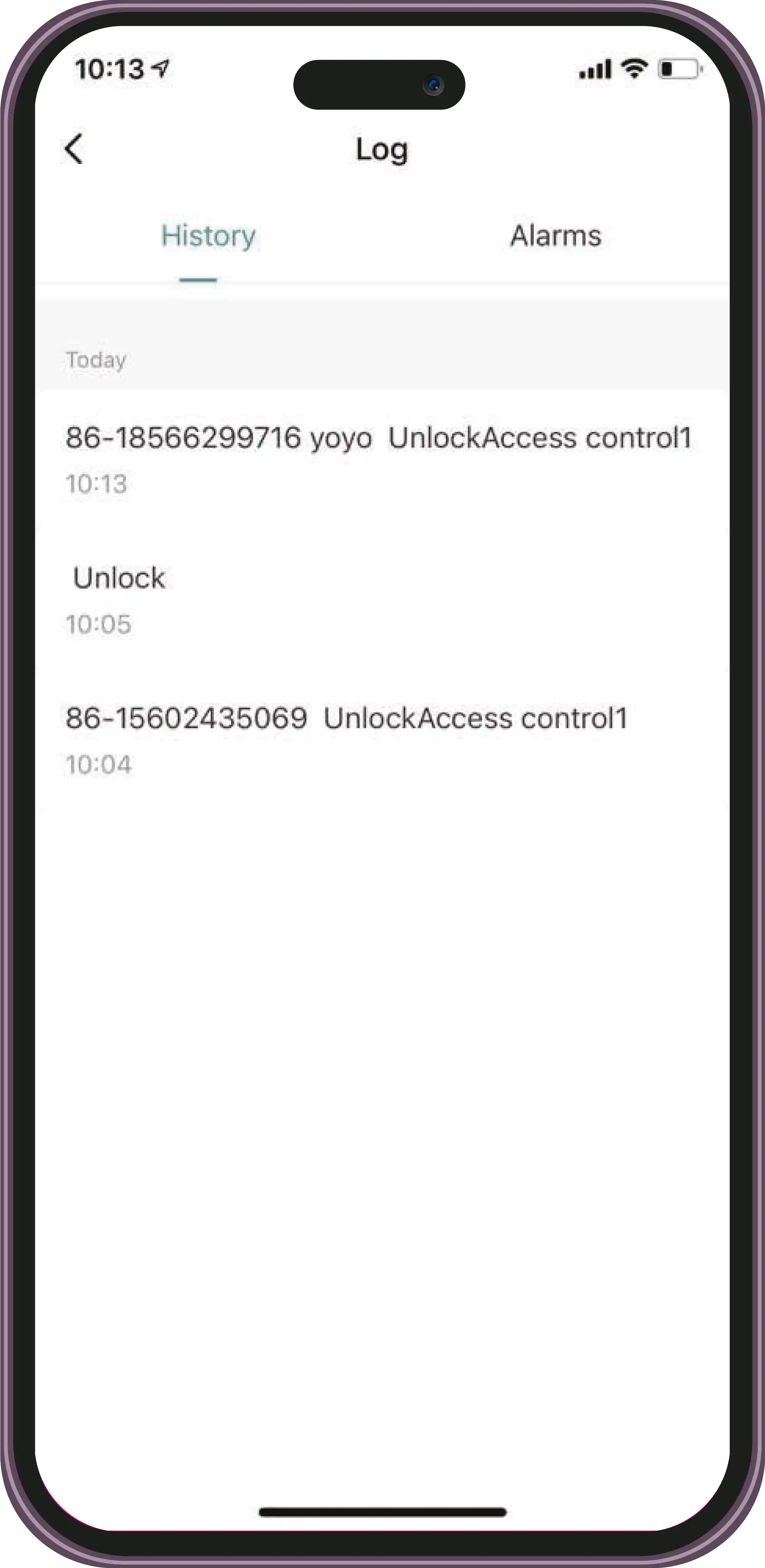
Check the door opening log.
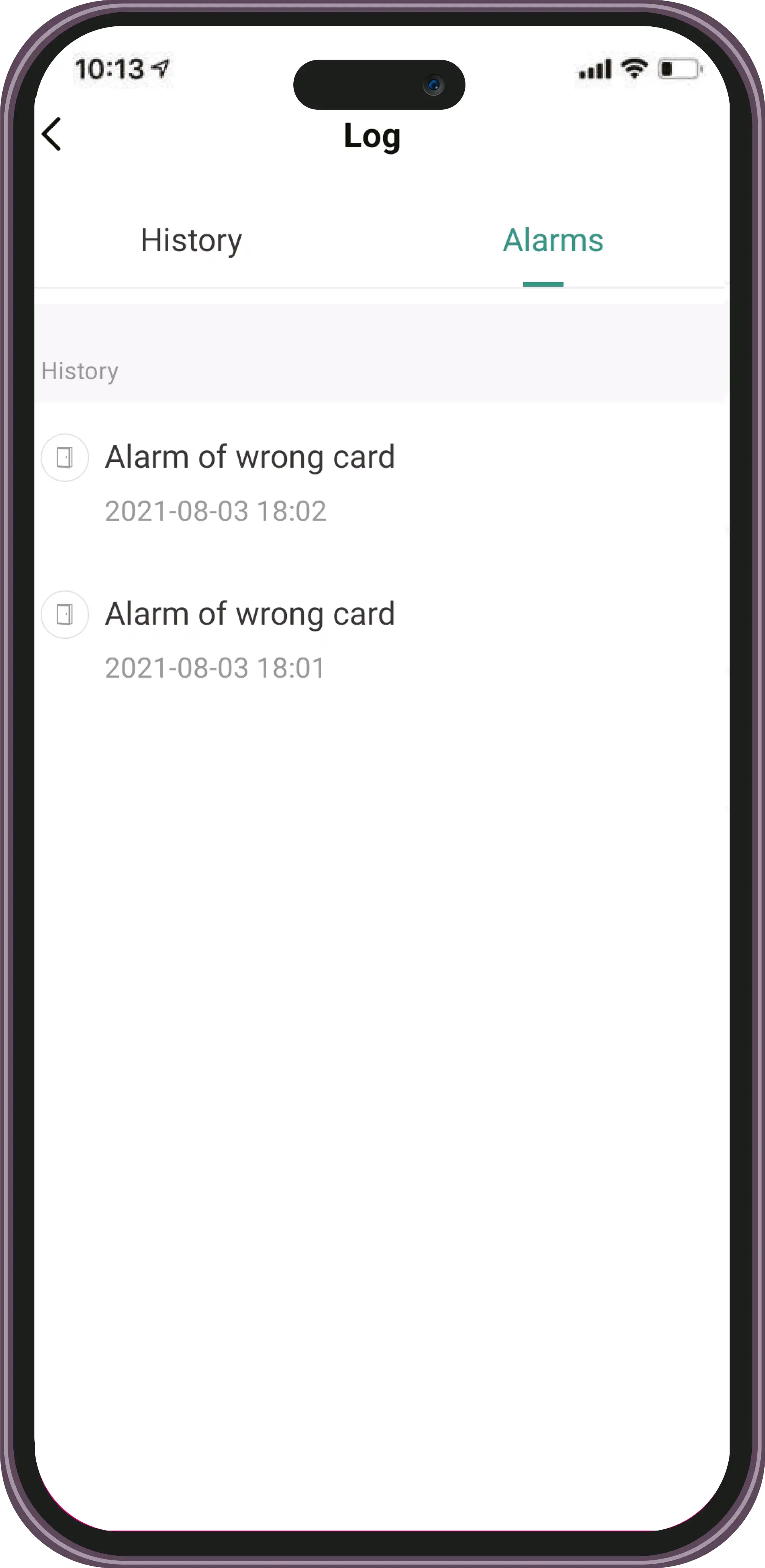
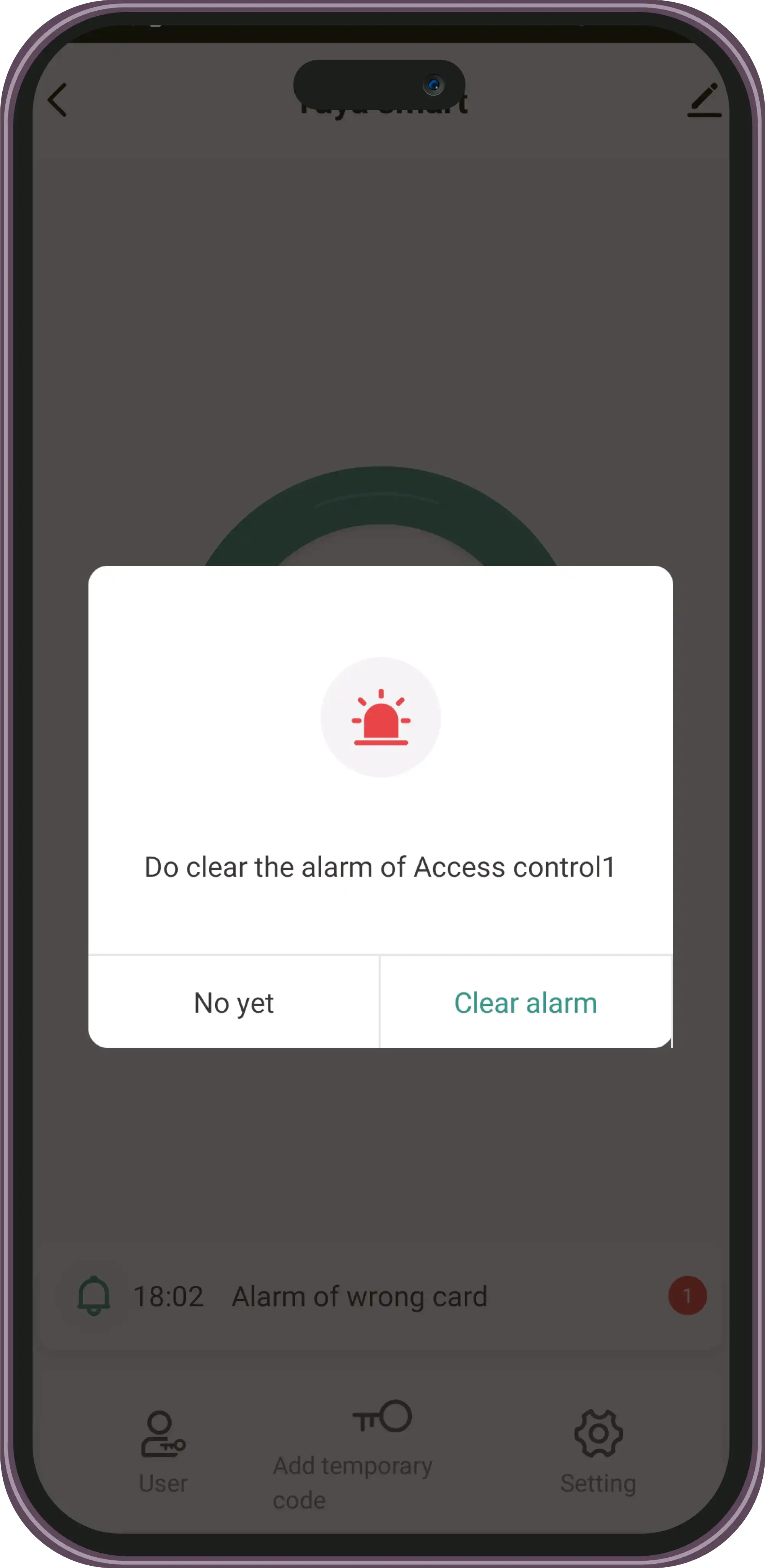
Check the log and delete alarms.
Settings and Configuration
Configuration
TopContact Technical Support
Can't find what you're looking for? Our technical support team can help.
Get Help