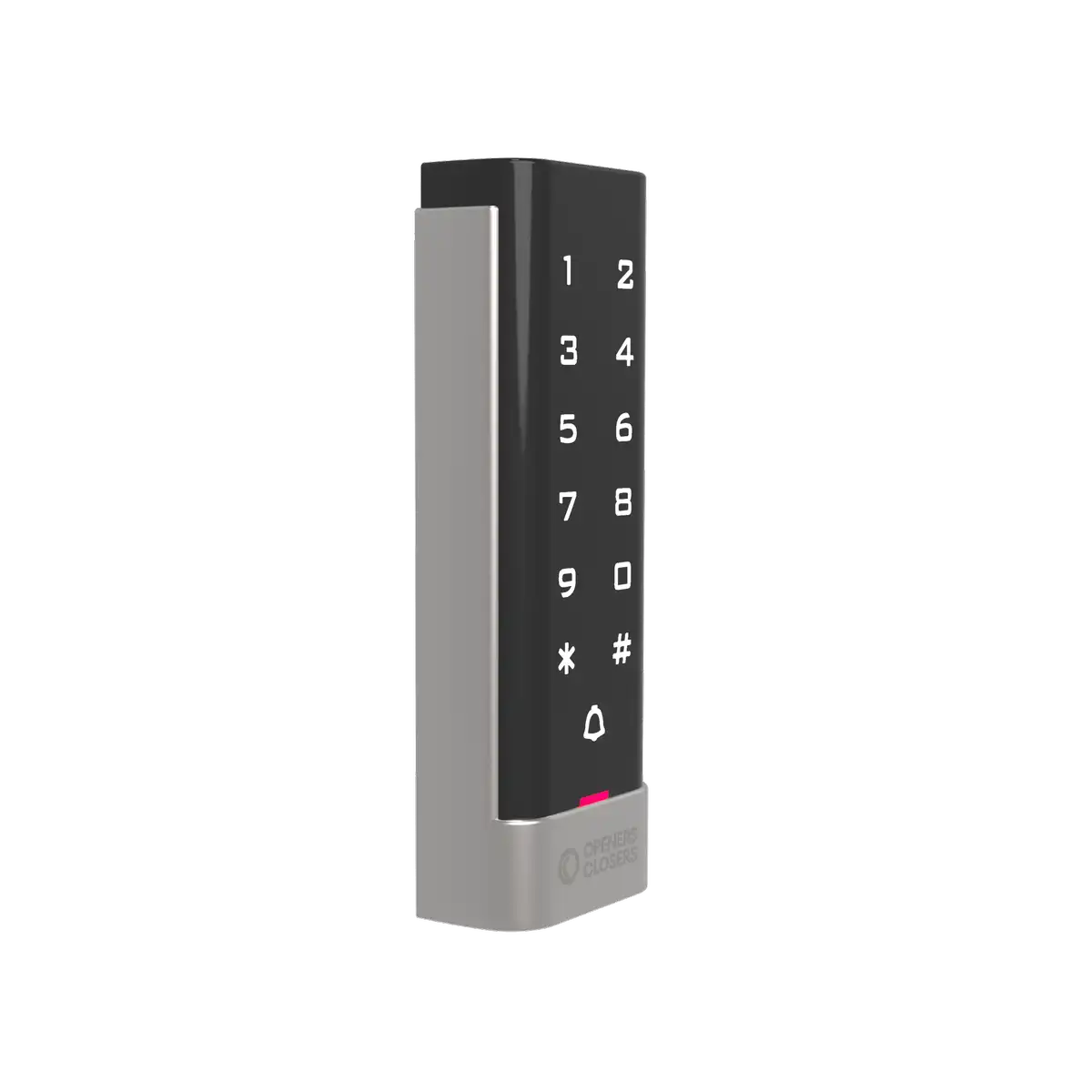
Coded Keypad
AC200 Instruction Manual
Read before installation or use
TopRead Before Installing or Using This Device
This device has been designed for integration into professional access control systems in residential, commercial, or industrial buildings. It must only be installed and handled by qualified technical personnel, in accordance with the manufacturer's specifications. Improper use, unauthorised handling, or incorrect installation may cause serious harm to persons or property, and will void both the warranty and the manufacturer's liability.
Electrical Safety
Before connecting, disconnecting, or intervening with the device, ensure the power supply is completely switched off. Although this product operates at low voltage (e.g. 12–24 VDC), improper handling can cause short circuits, door damage, overheating, or risk of electric shock.
Intended Use and Compatibility
This device is suitable for wooden, metal, or aluminium doors, depending on the model. Certain models are certified for use on fire doors and emergency exits. Always verify the specific certifications and compatibility before installation. Use in environments exposed to water, heavy dust, or aggressive chemical agents is not recommended unless the device is properly certified (e.g. IP65, IP68 etc.).
Maintenance and Use
Do not open, modify, or tamper with the interior of the device. Any unauthorised intervention will automatically void the warranty. Cleaning should be carried out using soft cloths and non-abrasive products. Periodic maintenance by a qualified technician is recommended, particularly in high-usage environments.
Limited Warranty
This product is covered by a commercial warranty against manufacturing defects for the period specified by Openers & Closers. The warranty does not cover normal wear and tear, incorrect installation, tampering, mechanical impacts, or unsuitable environmental conditions. Openers & Closers shall not be held liable for indirect damage, financial loss, or harm resulting from improper or non-compliant use.
Regulations and Compliance
This product complies, where applicable, with relevant regulations in each market (e.g. CE, RoHS, WEEE, UL 294, NFPA-80, EN 14846). Refer to the product labelling and technical documentation to confirm specific certifications.
Disposal and Recycling
This device contains electronic components and must not be disposed of with household waste. It must be taken to an authorised collection point for electrical and electronic equipment (WEEE). The crossed-out wheeled bin symbol indicates this legal requirement. The packaging is recyclable and should be disposed of in accordance with local regulations.
Intellectual Property and Documentation
The content of this manual, as well as the technology integrated into the product, is protected by intellectual and industrial property rights. Its reproduction, distribution, translation, or modification is prohibited without the express authorisation of Openers & Closers.
Dimensions
Top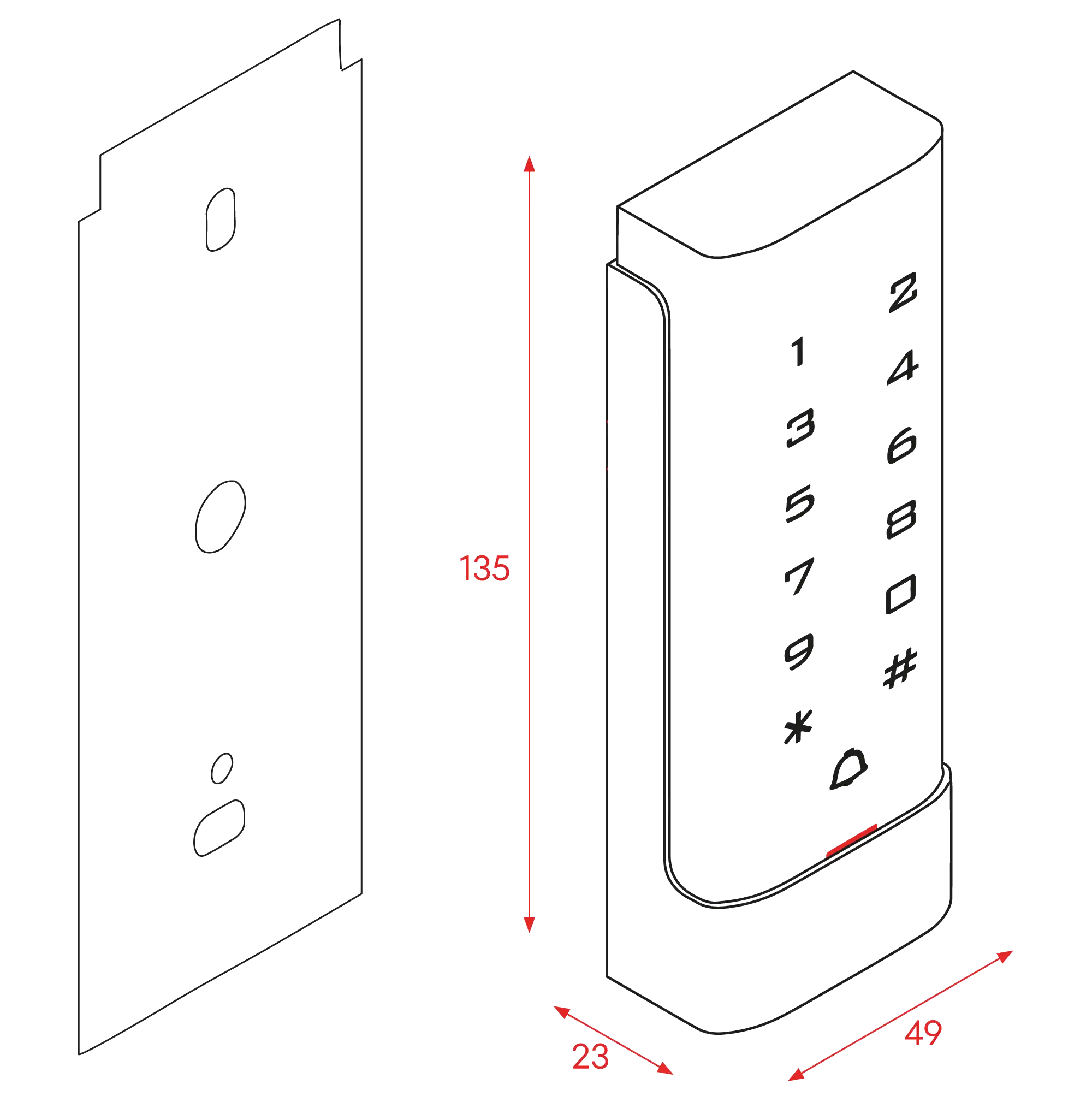
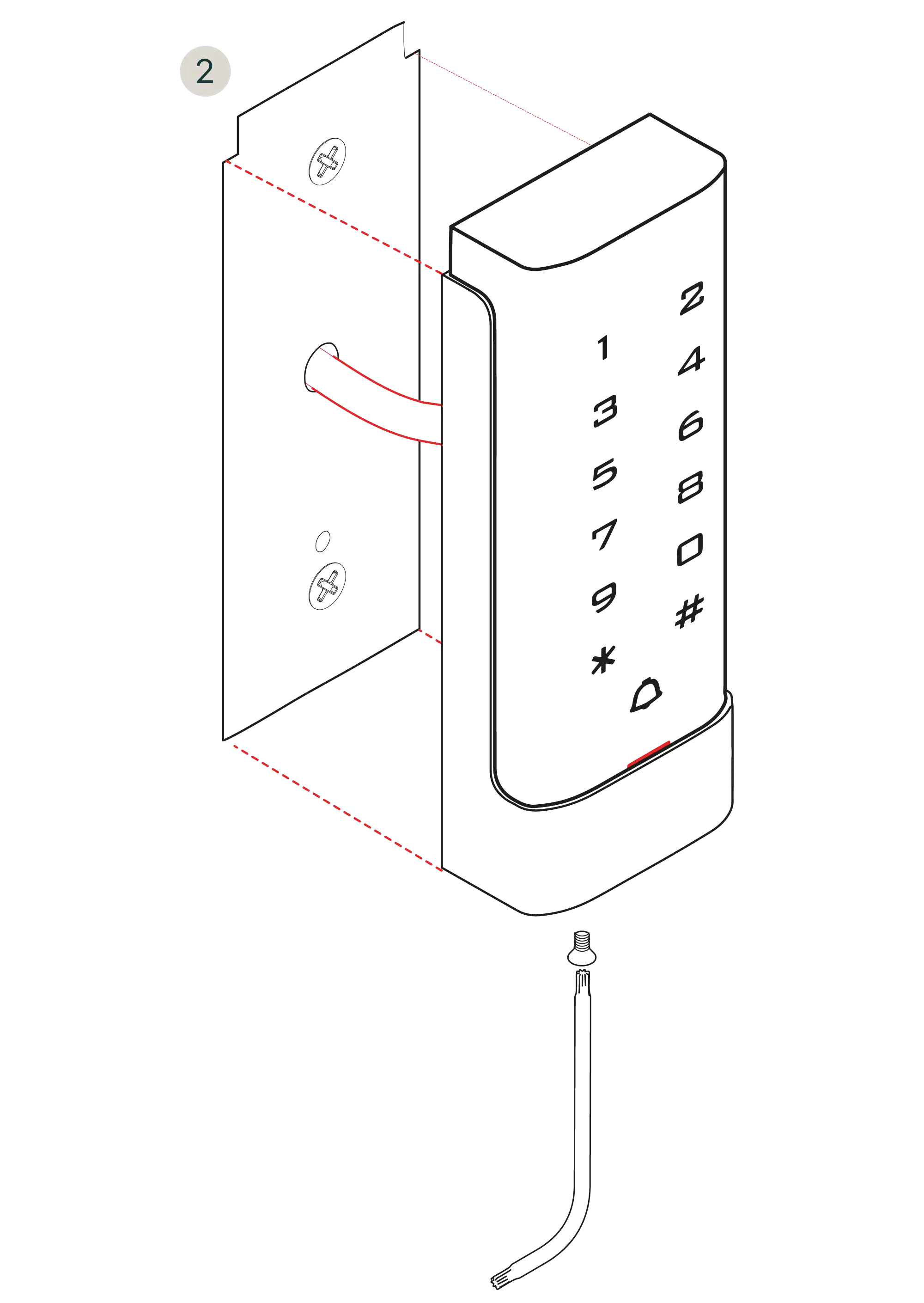
Installation
Top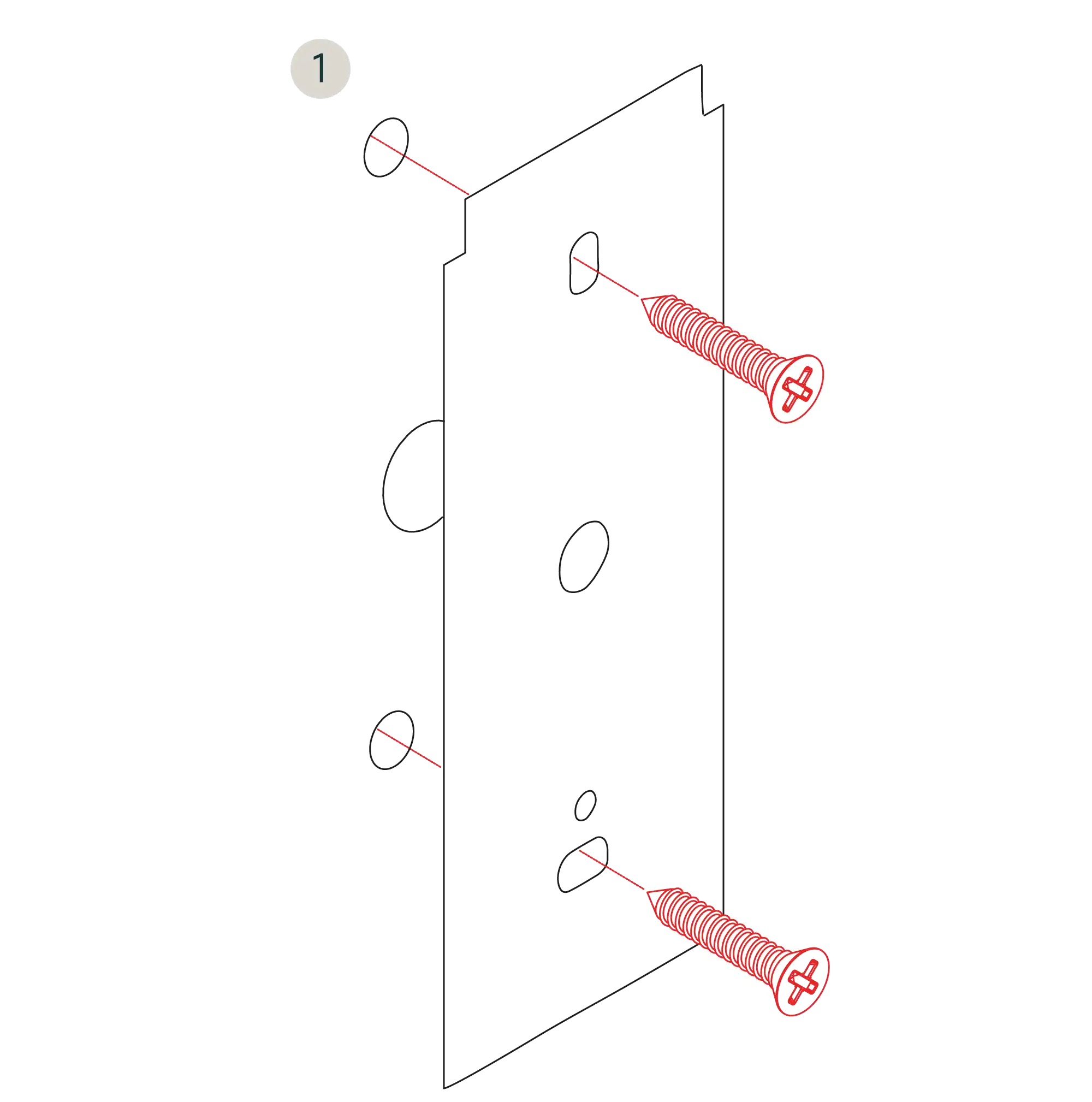
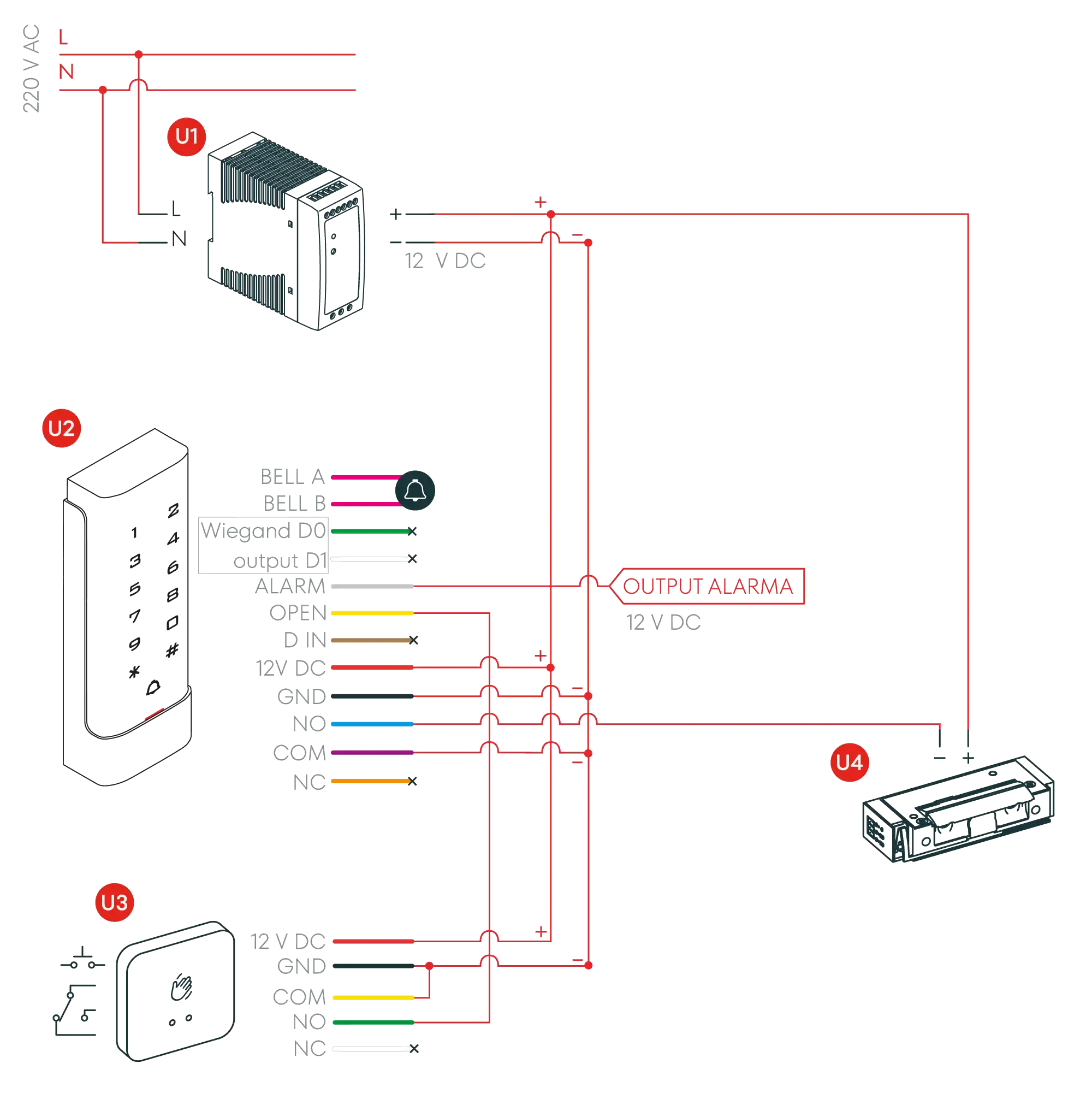
Connection Diagram (Option 1)
Top- U1Power Supply
- U2AC200 Keyboard
- U3Push Button (TP Series)
- U4Electric/Electronic Strike Option (Series 1,3,5,8 and 9)
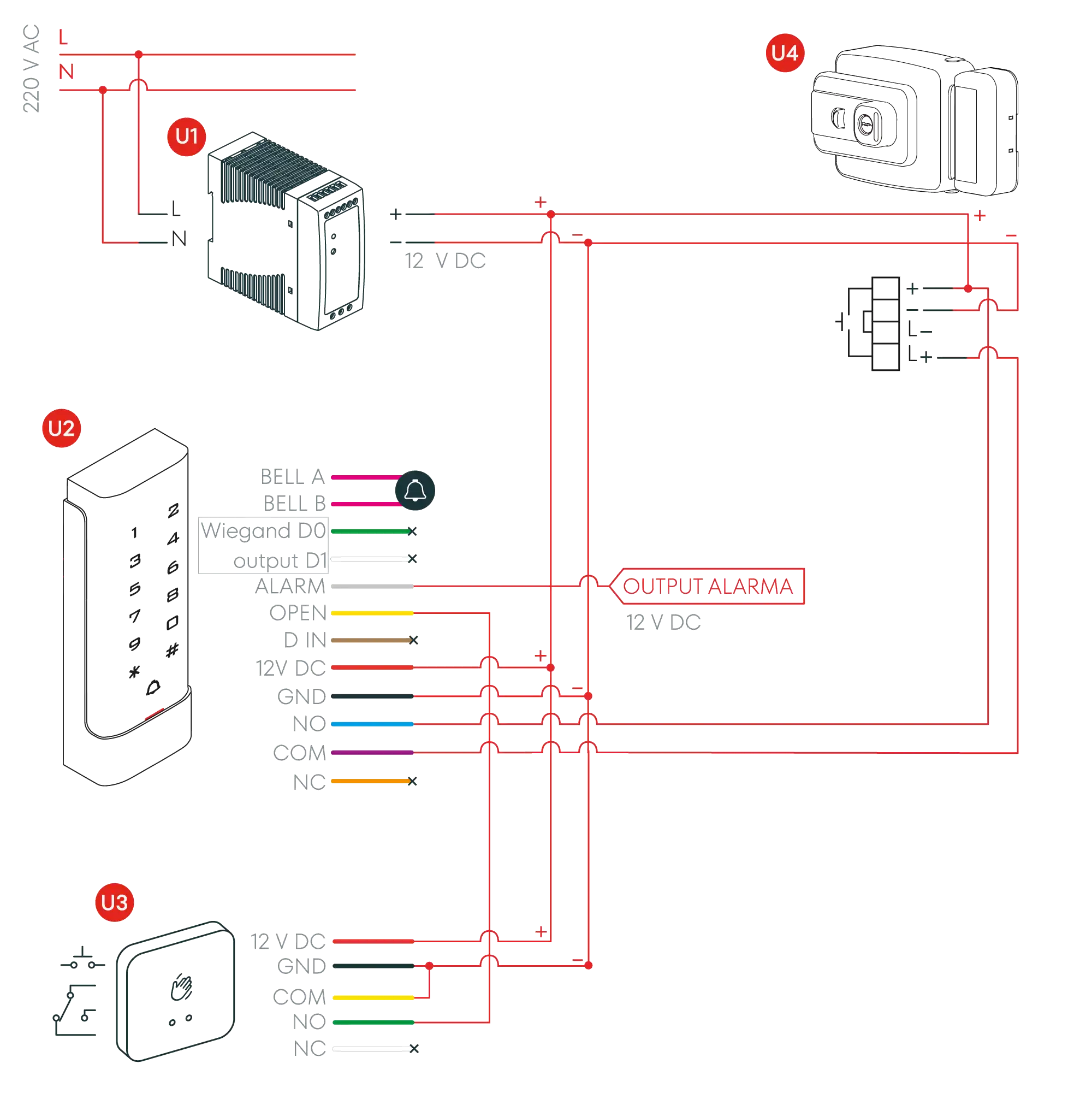
Connection Diagram (Option 2)
Top- U1Power Supply
- U2AC200 Keyboard
- U3Push Button (TP Series)
- U4Electromechanical Lock (CE Series)
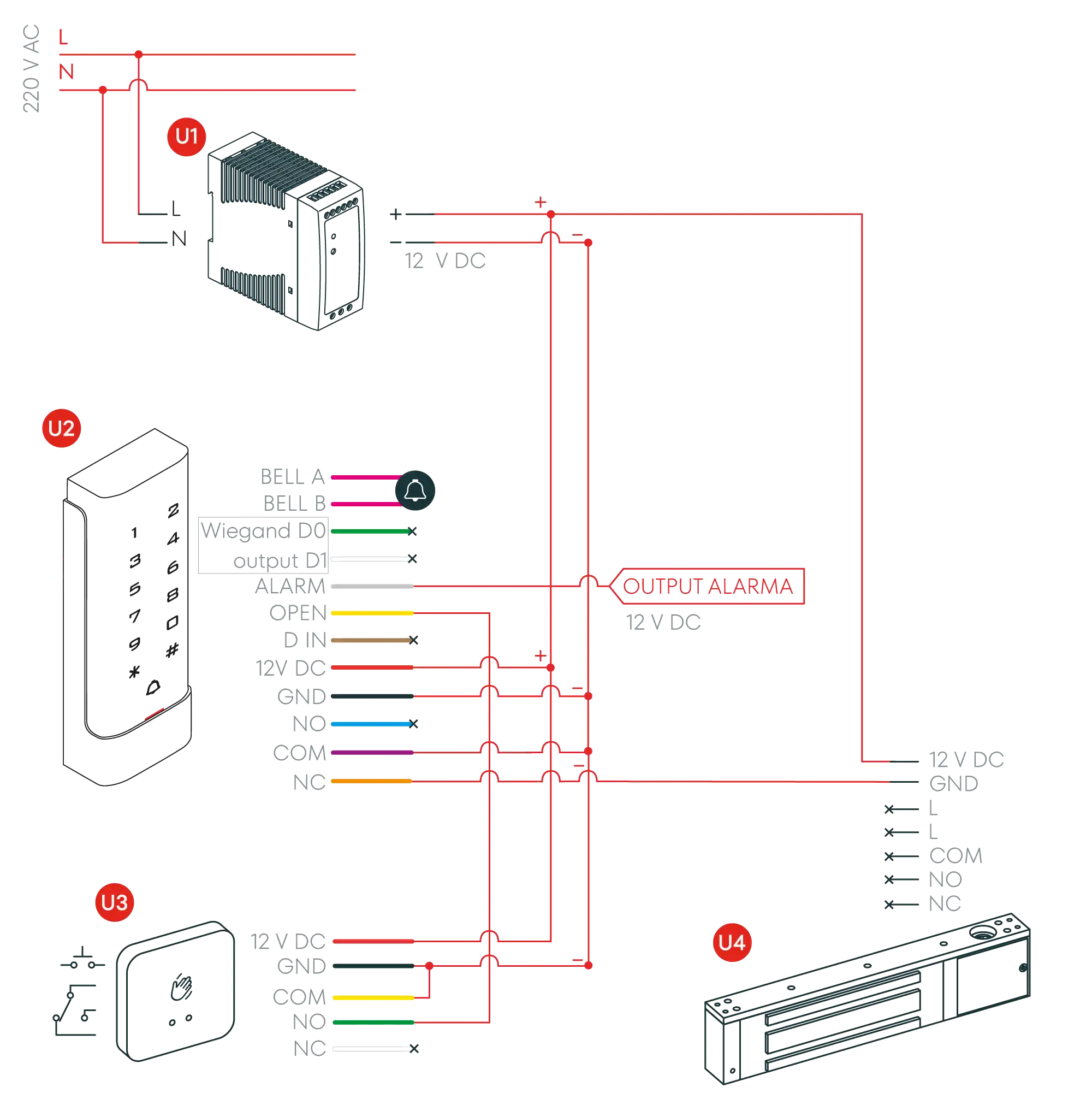
Connection Diagram (Option 3)
Top- U1Power Supply
- U2AC200 Keyboard
- U3Push Button (TP Series)
- U4Electromagnetic Strike Option (ME, MEX Series)
User Guide
TopLight and Sound Indications
| STATE | RED LIGHT | GREEN LIGHT | LOUDSPEAKER |
|---|---|---|---|
| Stand by | Blinks | - | - |
| Key pressed | - | - | 1 beep |
| Successful operation | - | Active | 1 beep |
| Failed operation | - | - | 3 beep |
| Entering programming mode | Active | - | - |
| Door opening | - | Active | 1 beep |
| Alarm | Active | - | Alarm |
Programming Guide: User Configuration
Top| Action | Command |
|---|---|
| Enter programming mode | [*] [Master Code] [#]. (Note: the master code by default is 999999) |
| Exit programming mode | [*] |
Note that to perform the following programming, the master user (programming mode) must log in.
| Action | Command |
|---|---|
| Change master code | [0] [New Code] [#] [New Code] [#] (Note: The master code must be 6 to 8 digits.) |
| Select an operating mode (Without possibility to combine method options) | [3][0][#] Card users only [3][1][#] Card + PIN users [3][2][#] Card or PIN user (EXAMPLE: [*]999999[#]31[#][*]) |
Add a Card User in mode ( [3] [0] [#] )
| Action | Command |
|---|---|
| Add and delete a card user | The operation is the same as in mode [3] [2] [#] |
Add Card and PIN Users in mode ( [3] [1] [#] )
| Action | Command |
|---|---|
| Add a Card + PIN user (Note: The PIN can be any 4-digit number between 0000-9999 except the number 1234 which is reserved.) | Add card as card user. Press [*] to exit programming mode. [*] [Card Read] [1][2][3][4] [#] [PIN] [#] [PIN] [#] |
| Change a PIN in Card + PIN mode (method 1) | [*] [Card read] [Old PIN] [#] [New PIN] [#] [New PIN] [#] (Note: This can be done outside programming mode, so the user can change their PIN themselves.) |
| Change a PIN in Card + PIN mode (method 2) | [*] [ID Number] [Old PIN] [#] [New PIN] [#] [New PIN] [#] (Note: This can be done outside programming mode, so the user can change their PIN themselves.) |
| Delete a Card + PIN user (card deletion only) | [2] [ID Number] [#] |
Add Card or PIN Users ( [3] [2] [#] )
| Action | Command |
|---|---|
| Add a user with PIN | [1] [ID Number] [#] [PIN] [#] (Note: The ID Number can be any number between 1-2000. The PIN can be any 4-digit number between 0000-9999 except the number 1234 which is reserved.) You can add more than one user without exiting programming mode: [1] [ID Number 1] [#] [PIN] [#] [ID Number 2] [#] [PIN] [#] |
| Delete a PIN user | [2] [ID Number] [#] (Note: Users can be deleted consecutively without exiting programming mode.) |
| Change the PIN of a PIN user: (This step should be performed outside programming mode) | [*] [ID Number] [#] [Old PIN] [#] [New PIN] [#] [New PIN] [#] |
| Add Card user (Method 1): (Note: This is the fastest method to input cards as it auto-generates the ID) | [1] [Card read] [#] Note: Cards can be added consecutively without exiting programming mode. (EXAMPLE: [1] [Card read] [#] [1] [Card read] [#]...) |
| Add Card user (Method 2): (Note: This is an alternative way to add cards by assigning an identifier.) | [1] [ID Number] [#] [Card read] [#] (Note: Cards can be added consecutively without exiting programming mode.) |
| Add Card user (Method 3): (Note: The card number is the last 8 digits printed on the back of the card. It auto-generates the ID.) | [1] [Card Number] [#] (Note: Cards can be added consecutively without exiting programming mode.) |
| Add Card user (Method 4): (Note: This way, we add a card identifier along with the card number.) | [1] [ID Number] [#] [Card Number] [#] (Note: Cards can be added consecutively without exiting programming mode.) |
| Delete a Card user with card | [2] [ID Number ] [#] |
| Delete a Card user with Card Number | [2] [Card Number] [#] |
Delete ALL users
| Action | Command |
|---|---|
| Delete ALL users | [2] [0][0][0][0] [#] |
Unlock door
| Action | Command |
|---|---|
| PIN User | Enter the [PIN] and press [#] |
| Card User | Present the card |
| Card + PIN User | Present the card, enter the [PIN] and press [#] |
Programming Guide: Door Configuration
TopDoor Relay Activation Time
| Action | Command |
|---|---|
| Set the relay activation time | [*] [Master Code] [#] [4] [0-99] [#] [*] (Note: 0-99 seconds is the adjustable time margin.) |
Door Open Detection
| Action | Command |
|---|---|
| Disable door open detection: (Default state) | In Programming Mode - [6] [0] [#] |
| Enable door open detection: Set alarm time (next page) | In Programming Mode - [6] [1] [#] |
Alarm Output Time
| Action | Command |
|---|---|
| Set the alarm time between 0-3 minutes | In Programming Mode - [5] [0-3] [#] |
Keyboard Lock and Alarm Options
| Action | Command |
|---|---|
| Normal state: No keyboard lock nor alarm (default state) | In Programming Mode - [7] [0] [#] |
| Keyboard locked | In Programming Mode - [7] [1] [#] |
| Alarm and internal buzzer active | In Programming Mode - [7] [2] [#] |
Reset the Alarm
| Action | Command |
|---|---|
| Reset the alarm for forced door opening | Present a valid card or enter [Master Code][#] |
| Reset the alarm for door left open too long | Close the door, present a valid card or enter [Master Code][#] |
Quick Programming Guide
Top| Action | Command |
|---|---|
| To enter programming mode | [*] |
Note that to perform the following programming, the master user must log in.
| Action | Command |
|---|---|
| Change the master code | [0] [New Code] [#] [New Code] [#] (Note: The master code must be 6 to 8 digits.) |
| Add a user with PIN | [1] [ID Number] [#] [PIN] [#] (Note: The ID Number can be any number between 1-2000. The PIN can be any 4-digit number between 0000-9999 except the number 1234 which is reserved.) |
| Add a user with Card | [1] [Card read] [#] (Note: Cards can be added consecutively without exiting programming mode.) |
| Delete a user, either Card or PIN | [2] [ID Number] [#] for PIN user [2] [Card read] [#] for Card. (Note: Users can be deleted consecutively without exiting programming mode.) |
Note that to unlock the door, you must exit programming mode.
| Action | Command |
|---|---|
| Unlock the door with PIN | Enter the PIN and press [#] |
| Unlock the door with Card | Present the card |
Restore Factory Settings
Top- Disconnect the unit's power.
- While the unit is powering on again, press and hold the [#] key.
- Upon hearing two beeps, release the [#] key; the system now has factory settings.
- Only the factory settings are restored; user data remains unaffected.
Contact Technical Support
Can't find what you're looking for? Our technical support team can help.
Get Help